
IdoSell connection
The Smart way of OrderPicking
Pick and pack with less mistakes and efficient routes.
Easily connect to IdoSell / Prosta integracja z IdoSell
Connect your IdoSell store to the Orderpicking App effortlessly. All your orders, product data, images, and stock levels will be synced automatically.
Połącz swój sklep IdoSell w kilku prostych krokach. Wszystkie zamówienia, dane produktów, zdjęcia i stany magazynowe są automatycznie importowane.
Try it now / Wypróbuj teraz
Visit the IdoSell App Store and start your free trial today.
Odwiedź IdoSell App Store i rozpocznij darmowy okres próbny już dziś.
Want a personal walkthrough first? Book a free demo.
Chcesz najpierw zobaczyć, jak to działa? Umów się na darmową prezentację.


Efficient order processing / Efektywna realizacja zamówień
• Pick products based on stock locations
• Kompletowanie produktów według lokalizacji magazynowej
• Verify items with a barcode scanner (optional)
• Sprawdź produkty za pomocą skanera kodów kreskowych (opcjonalnie)
• Complete orders instantly in the app
• Zakończ zamówienie bezpośrednio w aplikacji
• Always see order status and history
• Pełna historia i status zamówienia zawsze pod ręką
Your customer service team can quickly access order information and make adjustments when needed.
Obsługa klienta ma łatwy wgląd w statusy zamówień i może szybko reagować.
Why choose Orderpicking App? / Dlaczego warto wybrać Orderpicking App?
• Fewer picking mistakes
• Mniej błędów przy kompletacji
• Optimized picking routes
• Optymalne trasy kompletowania
• Mobile app for iOS & Android
• Aplikacja mobilna (iOS i Android)
• Free 30-day trial
• Darmowy okres próbny – 30 dni
• No obligations, cancel anytime
• Bez zobowiązań
• Extremely user-friendly
• Bardzo łatwa w użyciu
FAQ IdoSell Orderpicking App
Step 1 IdoSell
Download the Orderpicking App from the IdoSell app store and install it. Choose your trail period of 30 days.Step 2 Settingspage
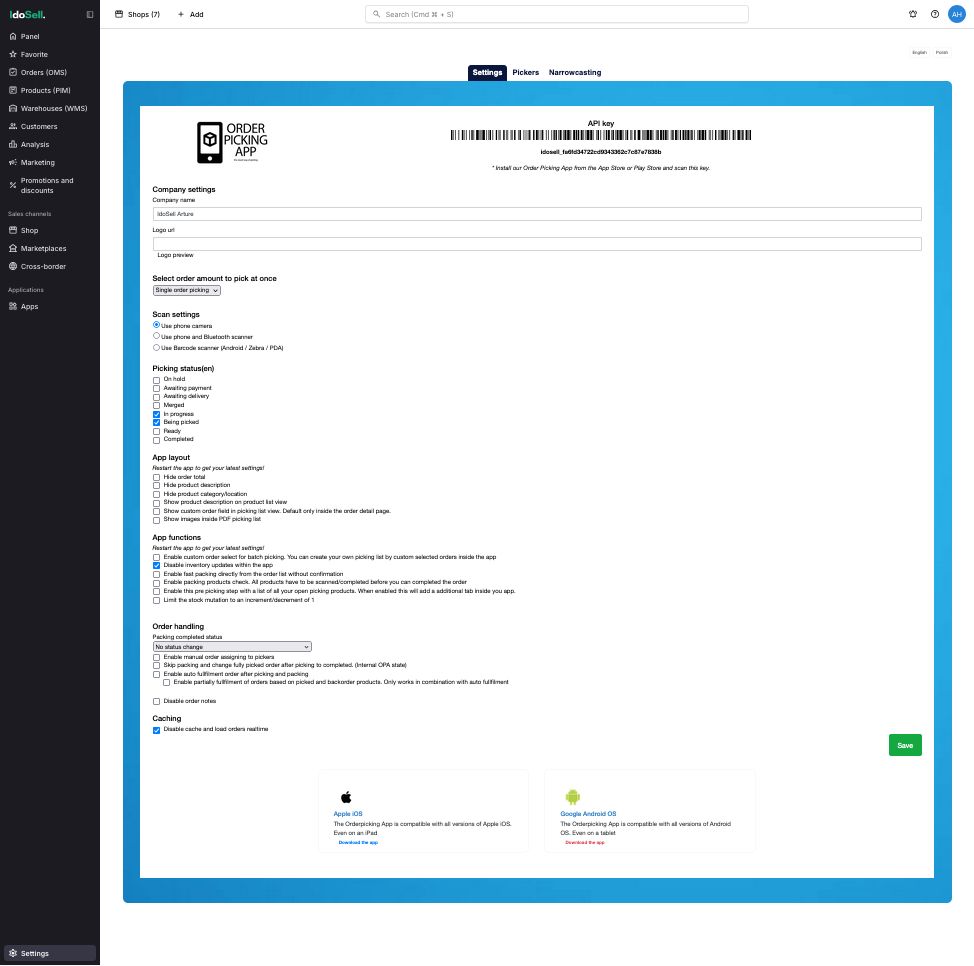
- Upload a company logo.
- Also choose here whether you pick per order or per x number of orders. [We advice to start picking per order (SINGLE)]
Step 3 APP INSTALL
Download the Orderpicking App on your phone. Go to the Apple App Store or the Google Play Store and search for Order Picking App Everything installed now. Only the connection between the app on the phone and the account is still necessary.- Go to the Settings tab in My Environment. Here is the API Key (Barcode + numbers).
- Open the app on the phone and press Scan API key. The phone’s camera opens.
- Scan the barcode and save it in the App. If all goes well, everything is now connected!
The Orderpicking App requires at least Android version 15 (Android 5.0 Lollipop) or higher.
This is not our own decision, but a requirement set by the Google Play Store. Google does not allow new apps or updates to be published for Android versions lower than 15. As a result, we are unable to make the app available for older devices.
We would love to support older versions, but publishing through the Play Store is technically not possible due to Google’s policies on security and compatibility.
Recommendation:
Please ensure your device runs Android 5.0 or newer. Most smartphones and tablets from the last few years already meet this requirement.
How to Set Up Batch Picking
1. Open App Settings Go to App Settings via My Account on orderpickingapp.com or in the WordPress plugin. Under the Picking Type setting, switch from Single Order Picking to Batch Picking. Save the settings and restart the app on your device.
2. Select a Picker and Orders In the app, select the picker who will be processing the orders. Optionally, enable the setting to manually choose which orders are included in the batch.
3. Start Picking
* If no orders have been claimed by the picker, the app will automatically load the oldest 5 open orders.
* Alternatively, you can select specific orders by scanning the order number or manually entering it.
You’ll now see the total number of orders in your batch. Tap Start Picking to begin the process.
Batch Picking
We’ll group orders into batches of 5 per picking run. Each bin on the cart should be labeled A, B, C, D, and E. When starting a picking run, you’ll receive a run number that applies to the entire cart (e.g. Run 31).
During picking, the first product may belong to multiple orders. In that case, the app will tell you which bin letter(s) to place the product in and how many units to pick for each.
Once all items have been picked, proceed to the packing screen. Here, you’ll see each order listed by its run number + bin letter (e.g. 31A, 31B, etc.). This allows you to match the picked items to the correct customer and prepare them for shipping.
o use the order picking app optimally with an external Bluetooth scanner and a keyboard, we recommend enabling the HiD Keyboard function on your scanner.
What does the HiD Keyboard function do?
This feature allows you to use both your keyboard and Bluetooth scanner simultaneously as input devices.
It’s ideal for situations where you need to alternate between entering data via the keyboard and scanning with the Bluetooth scanner.
What if my scanner doesn’t have a HiD Keyboard function?
If your scanner doesn’t support this function, you can only use one input device at a time.
This means you can either have the keyboard or the scanner active—but not both simultaneously.
Tip: Check your Bluetooth scanner’s manual to see how to enable the HiD Keyboard function.
It’s often easy to activate through a specific settings mode or by scanning a configuration code.
With the right settings, you can get the most out of your order picking app!
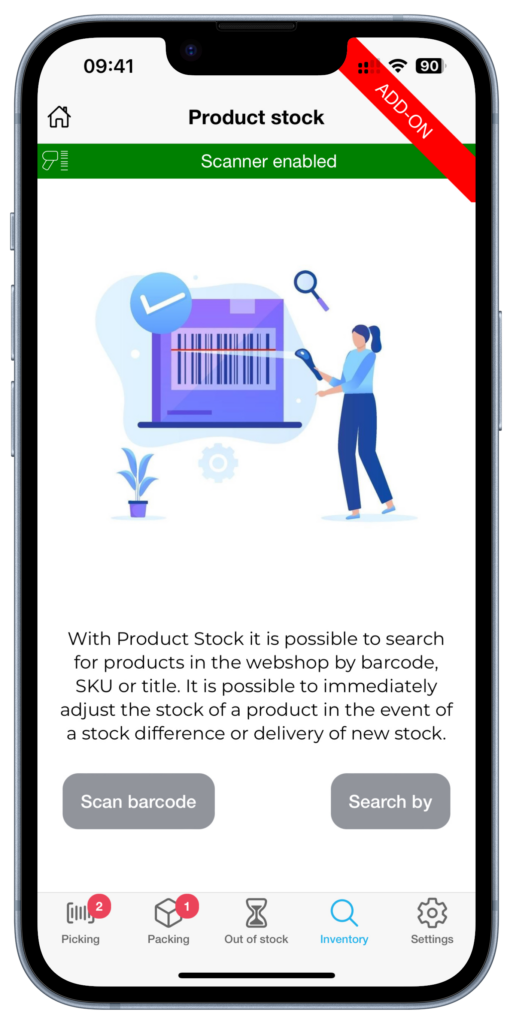
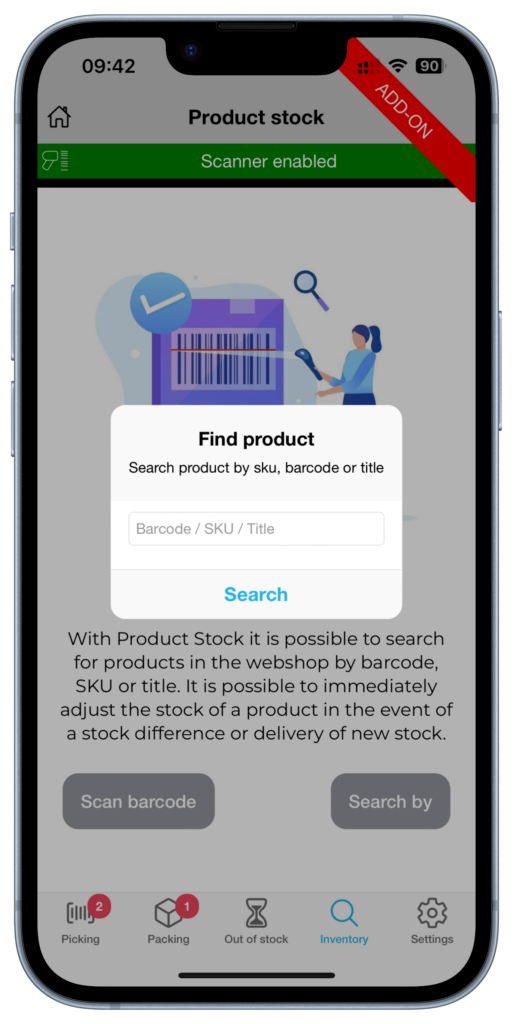
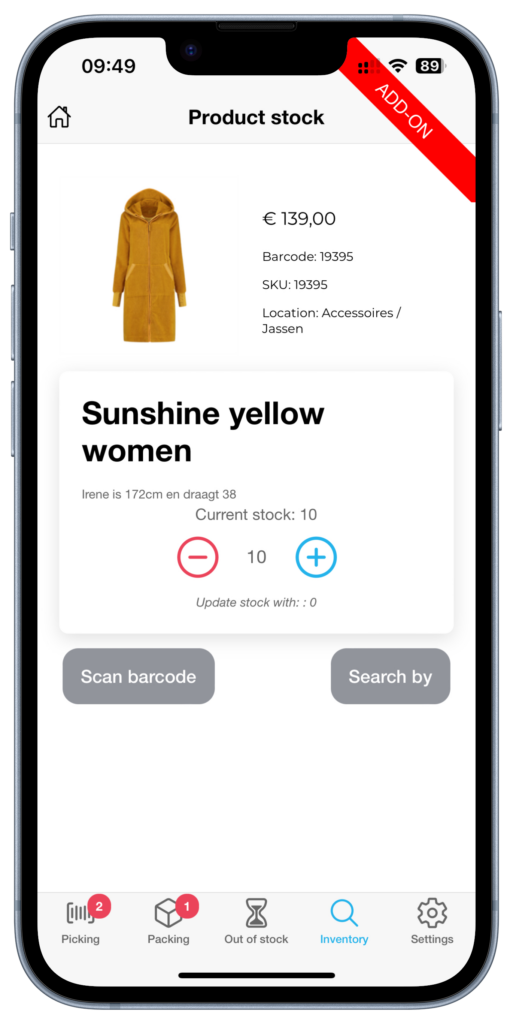
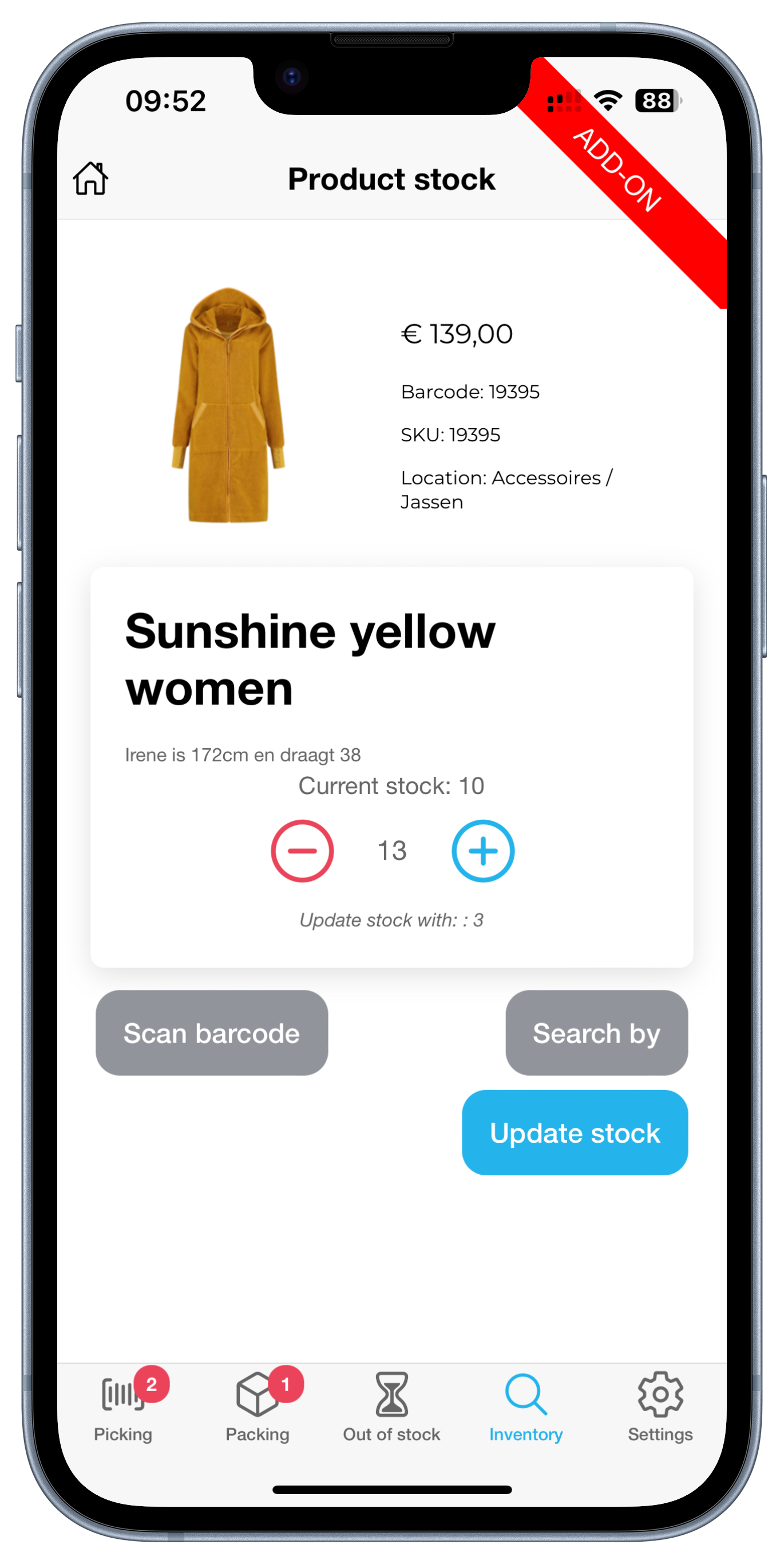
When you are order picking, you are already walking through the warehouse or the store. This is the perfect time to occasionally check the stock of a product. With the Inventory add-on we offer the option to scan the barcode or enter the sku/barcode (searching by product title is also possible for Woocommerce customers). We then retrieve the current stock of a product and this can be adjusted if necessary.
Inventory differences can be resolved during order picking. For example, consider products on a roll that are cut off during collection or to book new stock during a delivery.
Every shop has it’s own way of collecting orders. Some want to pick per order and others have multiple totes on a trolley. This is why we have the setting of the Order amount to pick at once.


When picking a single order you will start with the complete order list of open orders in the app. Here you can choose the order to pick.
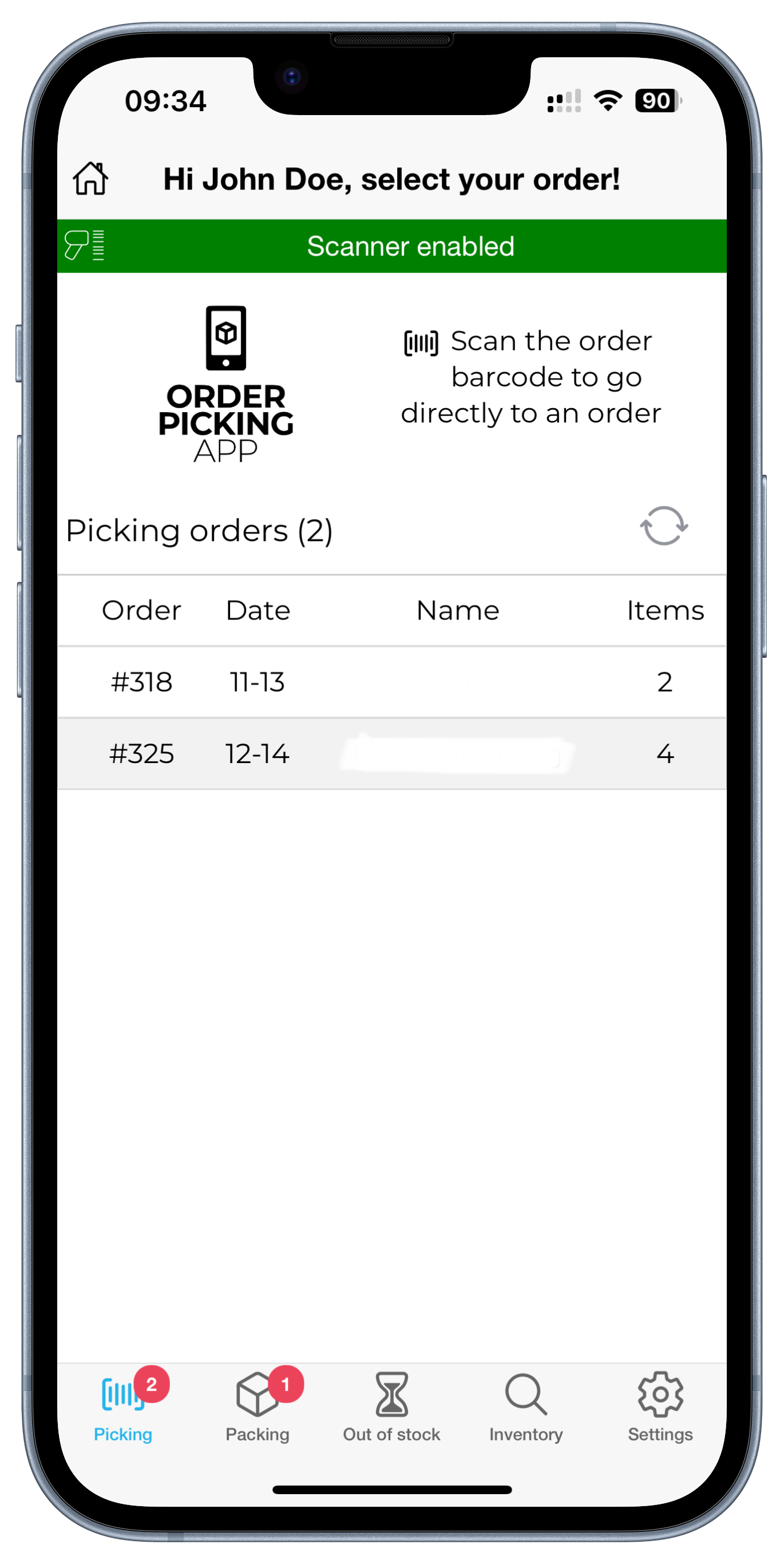
Single order picking
Batch picking
When selecting something other than single order we change the layout in the app a bit. If you have the option of 5 orders at once, we combine 5 orders in 1 picking-run. Each order will get a letter starting from A and a number (the batchnumber). These numbers will stick to the order true the whole process.
When batchpicking we will combine the orders so you will only stop at a product once (for multiple orders).
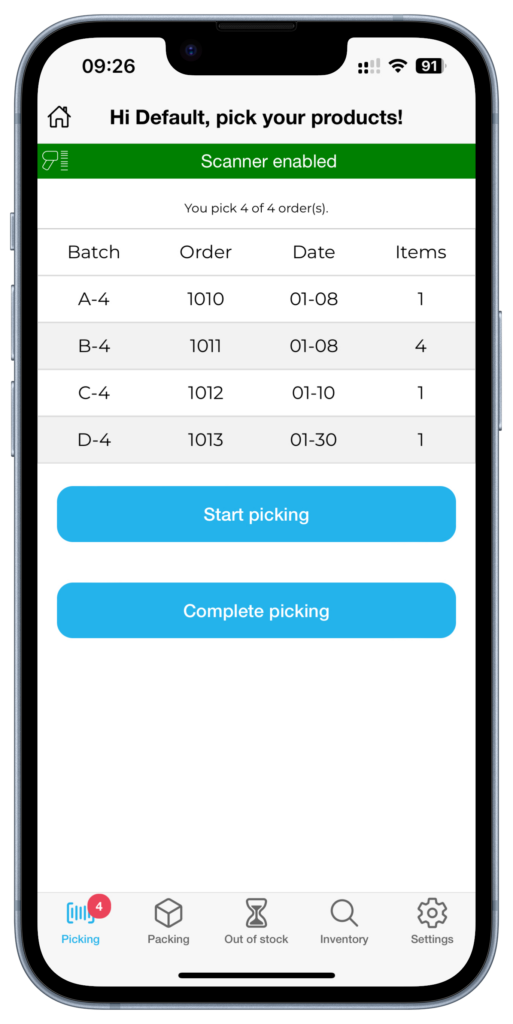
Batch picking orders
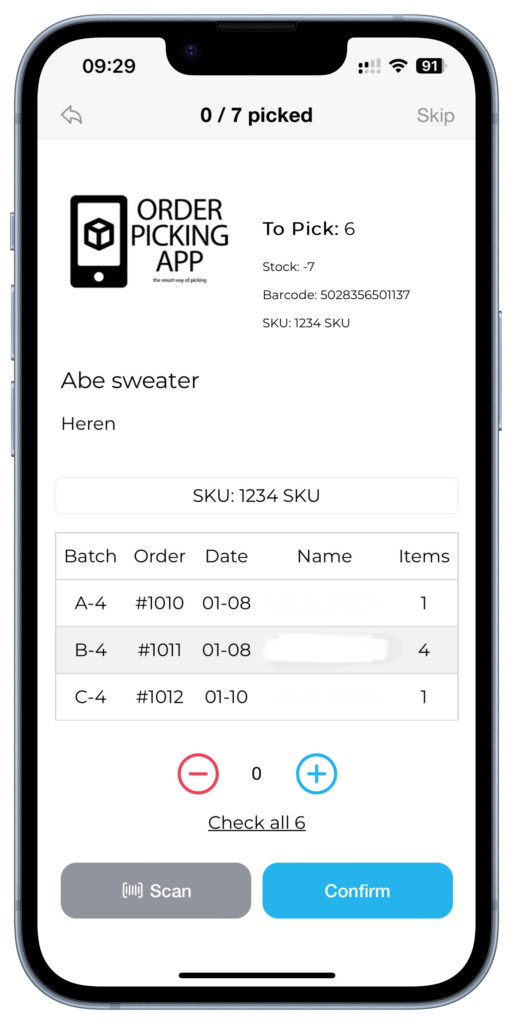
Batchpicking productscreen