The Smart way of OrderPicking Pick and pack with less mistakes and efficient routes.
Easily connect to IdoSell / Prosta integracja z IdoSell
Connect your IdoSell store to the Orderpicking App effortlessly. All your orders, product data, images, and stock levels will be synced automatically. Połącz swój sklep IdoSell w kilku prostych krokach. Wszystkie zamówienia, dane produktów, zdjęcia i stany magazynowe są automatycznie importowane.
Try it now / Wypróbuj teraz
Visit the IdoSell App Store and start your free trial today. Odwiedź IdoSell App Store i rozpocznij darmowy okres próbny już dziś.
Want a personal walkthrough first? Book a free demo. Chcesz najpierw zobaczyć, jak to działa? Umów się na darmową prezentację.
Efficient order processing / Efektywna realizacja zamówień
• Pick products based on stock locations • Kompletowanie produktów według lokalizacji magazynowej
• Verify items with a barcode scanner (optional) • Sprawdź produkty za pomocą skanera kodów kreskowych (opcjonalnie)
• Complete orders instantly in the app • Zakończ zamówienie bezpośrednio w aplikacji
• Always see order status and history • Pełna historia i status zamówienia zawsze pod ręką
Your customer service team can quickly access order information and make adjustments when needed. Obsługa klienta ma łatwy wgląd w statusy zamówień i może szybko reagować.
• Fewer picking mistakes • Mniej błędów przy kompletacji
• Optimized picking routes • Optymalne trasy kompletowania
• Mobile app for iOS & Android • Aplikacja mobilna (iOS i Android)
• Free 30-day trial • Darmowy okres próbny – 30 dni
• No obligations, cancel anytime • Bez zobowiązań
• Extremely user-friendly • Bardzo łatwa w użyciu
FAQ IdoSell Orderpicking App
Option 3: The picker selects the orders
Use this flow when pickers need to choose which orders to include in their picking round.
One-time setup
In your webshop admin, enable Enable custom order select for batch picking in the Orderpicking App integration settings.
For each batch
After opening the app and selecting their picker profile, the picker adds orders by:
Selecting an order from the list.
Scanning an order barcode.
Entering an order number.
Orders are assigned to bins in the order they are added. The first order goes into bin A, the second into bin B, the third into bin C, and so on.
Once the selection is complete, the picker selects Create batch, writes the batch number on the small whiteboard attached to the cart and starts picking.
The app guides the picker through the products and shows how many units belong in each bin. When all products have been collected, the picker completes the round.
Packing follows the same process as an automatic batch: select the order in the packing overview, match its batch number and bin letter to the correct cart and bin, check the contents using the app and pack the order. Create the shipping label in your own system after completing packing.
Option 4: The webshop manager assigns orders
Use this flow when you want to organise the workload from your webshop admin before pickers begin.
One-time setup
Enable Enable manual order assigning to pickers in the Orderpicking App integration settings in your webshop admin.
For each batch
The webshop manager selects orders in the webshop admin and assigns them to a picker in bulk. This allows the manager to prepare work for different pickers at the start of the day.
The picker opens the app and selects their usual picker profile. The assigned work is ready. They review the products to collect and select Start picking.
Keep the batch number clearly visible on the cart. The picker follows the app’s instructions, distributes the products across the correct bins and completes the picking round.
The packer opens the corresponding order from the packing overview. They use the batch number and bin letter to find the correct bin, check the products against the app and pack the order. After completing packing, they create the shipping label in their own shipping system.
Keep every order easy to identify
For batches identified by number and bin letter, use this simple rule:
Batch 328 + bin A = order 328-A
Keep the batch number visible on the cart and the bin letters easy to read. This helps the packer match each order in the app to the products collected for that customer.
For the printed-label flow, keep the order label inside its assigned bin so the packer can scan it directly.
Choose the flow that fits your team
Use printed labels when your team identifies orders by scanning a label in the bin. Choose automatic batches to work through the oldest orders, custom selection to give pickers control over their rounds, or manual assignment to plan the workload from your webshop admin.
Whichever option you choose, the process stays consistent: collect the products, keep orders separate, check and pack with the app, then create the shipping label in your own system.
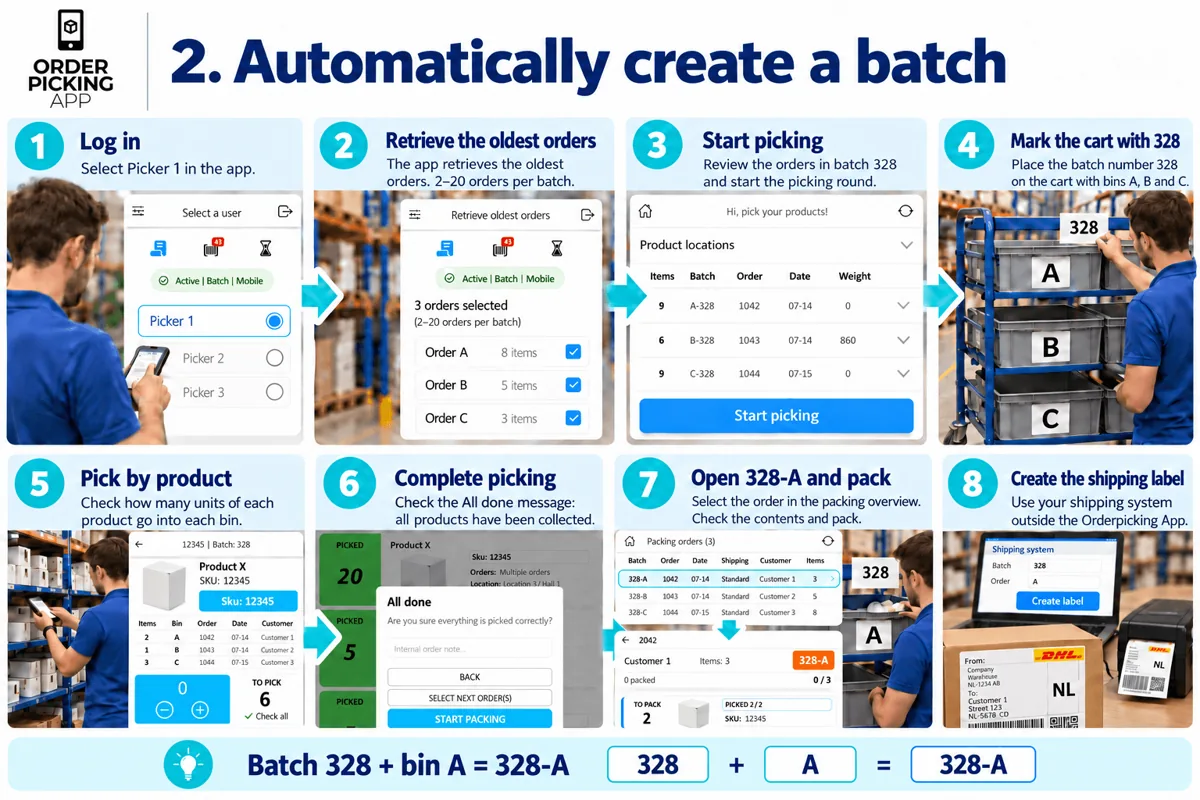
Option 2: Automatically create a batch
Use this flow to let the app prepare a batch from your oldest orders.
Set your batch size
Choose how many orders the picker should handle per round in the picker settings. You can set this to 2–20 orders per batch.
For each batch
The picker opens the app and selects their picker profile. Orderpicking App retrieves the oldest orders according to the configured batch size.
The picker reviews the batch and selects Start picking. Each order is assigned to a bin, and the batch receives its own number.
Write the batch number on a small whiteboard attached to the cart, or use another clearly visible marker. For example, mark the cart with 328 and keep the bins labelled A, B and C.
The app shows each product and the quantities required for each bin. The picker collects and distributes the products, then completes the picking round.
The packer finds the order in the packing overview using its batch number and bin letter. 328-A, for example, identifies the order in bin A on the cart marked 328. They open the order, check and pack the contents, complete packing and create the shipping label in their own system.
Option 3: The picker selects the orders
Use this flow when pickers need to choose which orders to include in their picking round.
One-time setup
In your webshop admin, enable Enable custom order select for batch picking in the Orderpicking App integration settings.
For each batch
After opening the app and selecting their picker profile, the picker adds orders by:
Selecting an order from the list.
Scanning an order barcode.
Entering an order number.
Orders are assigned to bins in the order they are added. The first order goes into bin A, the second into bin B, the third into bin C, and so on.
Once the selection is complete, the picker selects Create batch, writes the batch number on the small whiteboard attached to the cart and starts picking.
The app guides the picker through the products and shows how many units belong in each bin. When all products have been collected, the picker completes the round.
Packing follows the same process as an automatic batch: select the order in the packing overview, match its batch number and bin letter to the correct cart and bin, check the contents using the app and pack the order. Create the shipping label in your own system after completing packing.
Option 4: The webshop manager assigns orders
Use this flow when you want to organise the workload from your webshop admin before pickers begin.
One-time setup
Enable Enable manual order assigning to pickers in the Orderpicking App integration settings in your webshop admin.
For each batch
The webshop manager selects orders in the webshop admin and assigns them to a picker in bulk. This allows the manager to prepare work for different pickers at the start of the day.
The picker opens the app and selects their usual picker profile. The assigned work is ready. They review the products to collect and select Start picking.
Keep the batch number clearly visible on the cart. The picker follows the app’s instructions, distributes the products across the correct bins and completes the picking round.
The packer opens the corresponding order from the packing overview. They use the batch number and bin letter to find the correct bin, check the products against the app and pack the order. After completing packing, they create the shipping label in their own shipping system.
Keep every order easy to identify
For batches identified by number and bin letter, use this simple rule:
Batch 328 + bin A = order 328-A
Keep the batch number visible on the cart and the bin letters easy to read. This helps the packer match each order in the app to the products collected for that customer.
For the printed-label flow, keep the order label inside its assigned bin so the packer can scan it directly.
Choose the flow that fits your team
Use printed labels when your team identifies orders by scanning a label in the bin. Choose automatic batches to work through the oldest orders, custom selection to give pickers control over their rounds, or manual assignment to plan the workload from your webshop admin.
Whichever option you choose, the process stays consistent: collect the products, keep orders separate, check and pack with the app, then create the shipping label in your own system.
Option 1: Batch picking with order labels
Use this flow when you want a printed order label to stay with each order throughout picking and packing.
One-time setup
In the settings of the Orderpicking App integration in your webshop admin, enable Enable custom order select for batch picking.
For each batch
Print the order labels from your webshop admin using the Orderpicking App integration. Open the app and select a picker with batch picking enabled.
Place the first order label in bin A and scan its order barcode to add the order. Place the next label in bin B and scan that barcode. Continue until you have added all the orders for the round.
Select Create batch and start picking. Follow the app’s instructions and place the products in the correct bins. When everything has been collected, complete the picking round.
At the packing station, the packer takes a bin and scans the order barcode on the label inside it. They check the contents against the order in the app, pack the products and complete packing. Finally, they create the shipping label in their own shipping system.
Option 2: Automatically create a batch
Use this flow to let the app prepare a batch from your oldest orders.
Set your batch size
Choose how many orders the picker should handle per round in the picker settings. You can set this to 2–20 orders per batch.
For each batch
The picker opens the app and selects their picker profile. Orderpicking App retrieves the oldest orders according to the configured batch size.
The picker reviews the batch and selects Start picking. Each order is assigned to a bin, and the batch receives its own number.
Write the batch number on a small whiteboard attached to the cart, or use another clearly visible marker. For example, mark the cart with 328 and keep the bins labelled A, B and C.
The app shows each product and the quantities required for each bin. The picker collects and distributes the products, then completes the picking round.
The packer finds the order in the packing overview using its batch number and bin letter. 328-A, for example, identifies the order in bin A on the cart marked 328. They open the order, check and pack the contents, complete packing and create the shipping label in their own system.
Option 3: The picker selects the orders
Use this flow when pickers need to choose which orders to include in their picking round.
One-time setup
In your webshop admin, enable Enable custom order select for batch picking in the Orderpicking App integration settings.
For each batch
After opening the app and selecting their picker profile, the picker adds orders by:
Selecting an order from the list.
Scanning an order barcode.
Entering an order number.
Orders are assigned to bins in the order they are added. The first order goes into bin A, the second into bin B, the third into bin C, and so on.
Once the selection is complete, the picker selects Create batch, writes the batch number on the small whiteboard attached to the cart and starts picking.
The app guides the picker through the products and shows how many units belong in each bin. When all products have been collected, the picker completes the round.
Packing follows the same process as an automatic batch: select the order in the packing overview, match its batch number and bin letter to the correct cart and bin, check the contents using the app and pack the order. Create the shipping label in your own system after completing packing.
Option 4: The webshop manager assigns orders
Use this flow when you want to organise the workload from your webshop admin before pickers begin.
One-time setup
Enable Enable manual order assigning to pickers in the Orderpicking App integration settings in your webshop admin.
For each batch
The webshop manager selects orders in the webshop admin and assigns them to a picker in bulk. This allows the manager to prepare work for different pickers at the start of the day.
The picker opens the app and selects their usual picker profile. The assigned work is ready. They review the products to collect and select Start picking.
Keep the batch number clearly visible on the cart. The picker follows the app’s instructions, distributes the products across the correct bins and completes the picking round.
The packer opens the corresponding order from the packing overview. They use the batch number and bin letter to find the correct bin, check the products against the app and pack the order. After completing packing, they create the shipping label in their own shipping system.
Keep every order easy to identify
For batches identified by number and bin letter, use this simple rule:
Batch 328 + bin A = order 328-A
Keep the batch number visible on the cart and the bin letters easy to read. This helps the packer match each order in the app to the products collected for that customer.
For the printed-label flow, keep the order label inside its assigned bin so the packer can scan it directly.
Choose the flow that fits your team
Use printed labels when your team identifies orders by scanning a label in the bin. Choose automatic batches to work through the oldest orders, custom selection to give pickers control over their rounds, or manual assignment to plan the workload from your webshop admin.
Whichever option you choose, the process stays consistent: collect the products, keep orders separate, check and pack with the app, then create the shipping label in your own system.
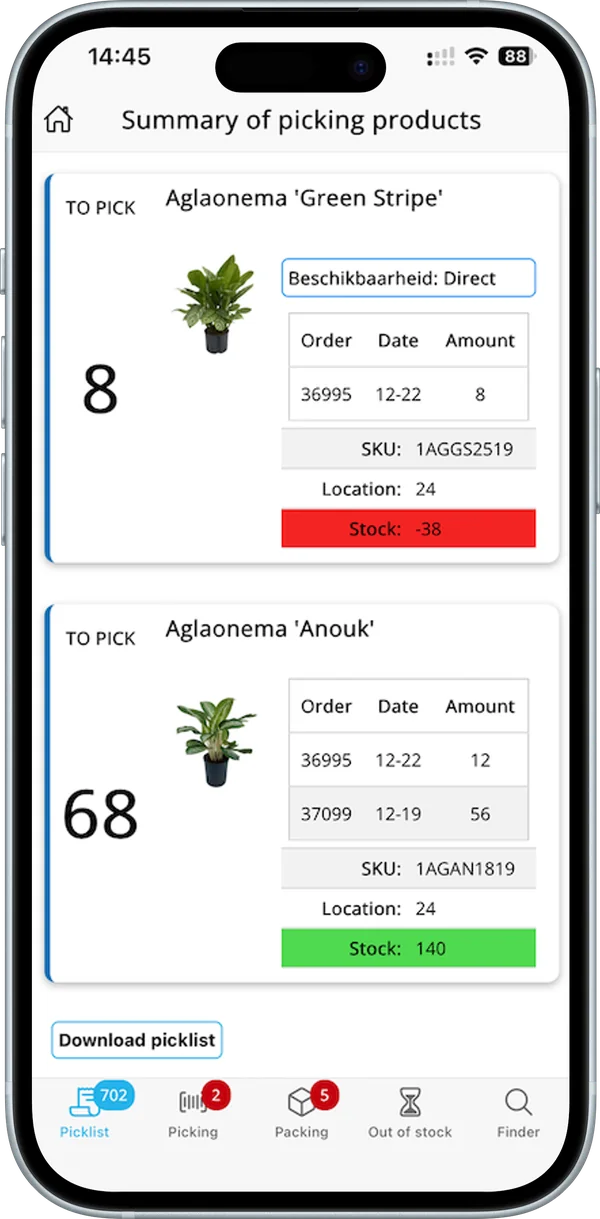
Pick multiple orders in one round while keeping every customer’s products separate. With Orderpicking App, each order is assigned to its own bin on your picking cart. The app guides your picker through the products and shows how many units belong in each bin.
You can organise your batches in four ways: use printed order labels, automatically retrieve the oldest orders, let the picker select orders or assign orders from your webshop admin.
How batch picking works
Prepare a picking cart with clearly labelled bins: A, B, C and so on. Each bin holds one customer order.
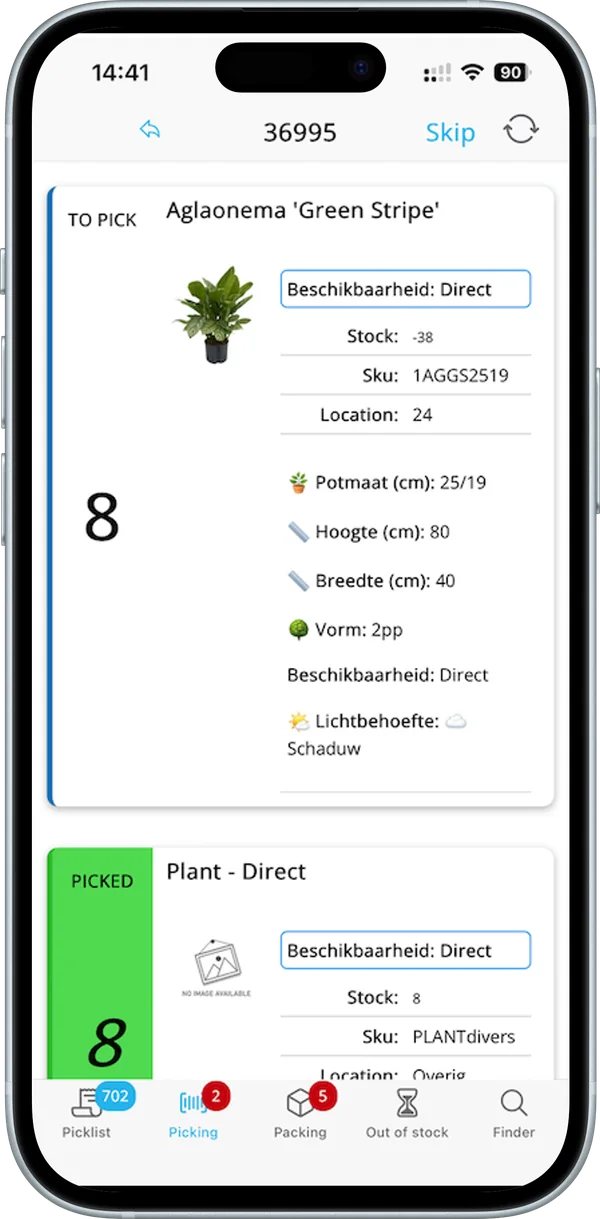
During the picking round, Orderpicking App combines the products from the orders into a picking list. For each product, the picker sees how many units to collect and which bins they belong in. If the same product appears in several orders, the picker can collect it for those orders together.
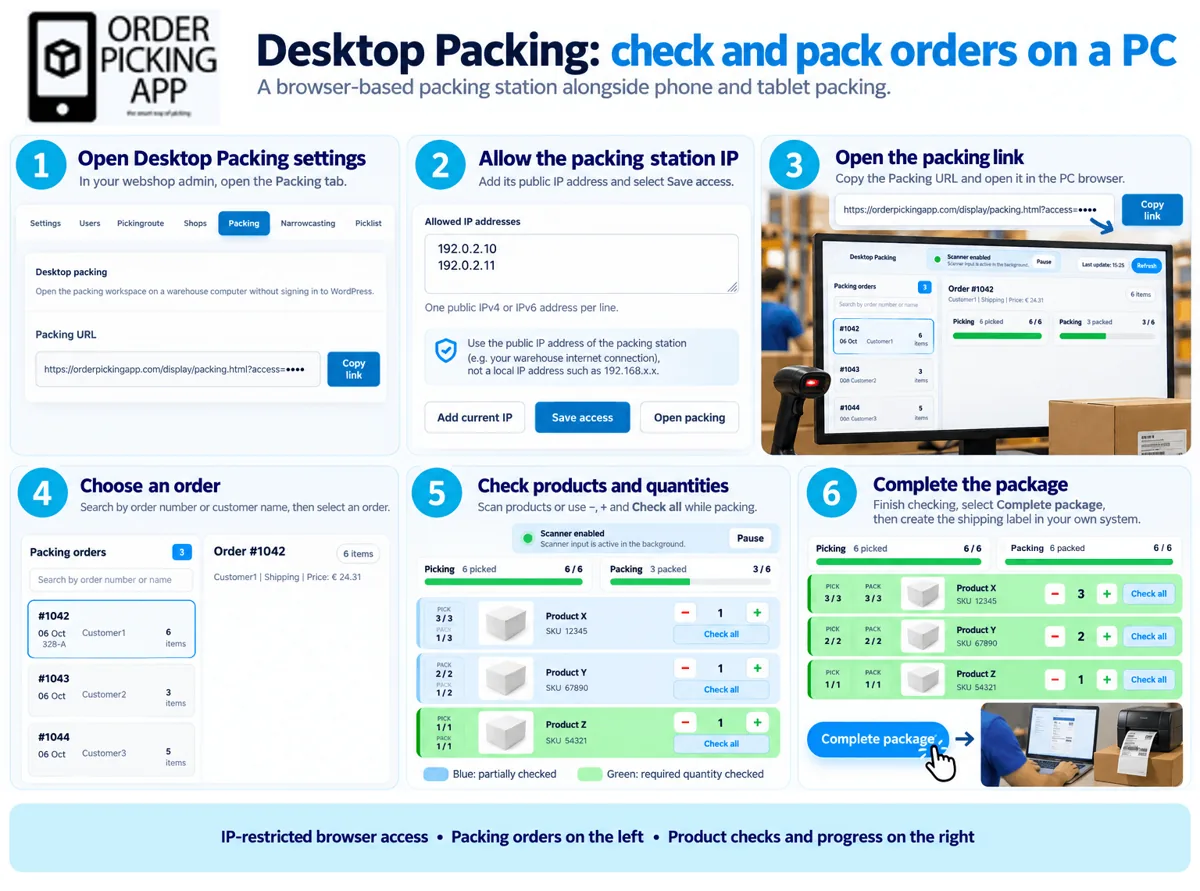
Once picking is complete, the packer opens each order, checks the contents using the app and packs the products. The shipping label is then created in your own shipping system.
Option 1: Batch picking with order labels
Use this flow when you want a printed order label to stay with each order throughout picking and packing.
One-time setup
In the settings of the Orderpicking App integration in your webshop admin, enable Enable custom order select for batch picking.
For each batch
Print the order labels from your webshop admin using the Orderpicking App integration. Open the app and select a picker with batch picking enabled.
Place the first order label in bin A and scan its order barcode to add the order. Place the next label in bin B and scan that barcode. Continue until you have added all the orders for the round.
Select Create batch and start picking. Follow the app’s instructions and place the products in the correct bins. When everything has been collected, complete the picking round.
At the packing station, the packer takes a bin and scans the order barcode on the label inside it. They check the contents against the order in the app, pack the products and complete packing. Finally, they create the shipping label in their own shipping system.
Option 2: Automatically create a batch
Use this flow to let the app prepare a batch from your oldest orders.
Set your batch size
Choose how many orders the picker should handle per round in the picker settings. You can set this to 2–20 orders per batch.
For each batch
The picker opens the app and selects their picker profile. Orderpicking App retrieves the oldest orders according to the configured batch size.
The picker reviews the batch and selects Start picking. Each order is assigned to a bin, and the batch receives its own number.
Write the batch number on a small whiteboard attached to the cart, or use another clearly visible marker. For example, mark the cart with 328 and keep the bins labelled A, B and C.
The app shows each product and the quantities required for each bin. The picker collects and distributes the products, then completes the picking round.
The packer finds the order in the packing overview using its batch number and bin letter. 328-A, for example, identifies the order in bin A on the cart marked 328. They open the order, check and pack the contents, complete packing and create the shipping label in their own system.
Option 3: The picker selects the orders
Use this flow when pickers need to choose which orders to include in their picking round.
One-time setup
In your webshop admin, enable Enable custom order select for batch picking in the Orderpicking App integration settings.
For each batch
After opening the app and selecting their picker profile, the picker adds orders by:
Selecting an order from the list.
Scanning an order barcode.
Entering an order number.
Orders are assigned to bins in the order they are added. The first order goes into bin A, the second into bin B, the third into bin C, and so on.
Once the selection is complete, the picker selects Create batch, writes the batch number on the small whiteboard attached to the cart and starts picking.
The app guides the picker through the products and shows how many units belong in each bin. When all products have been collected, the picker completes the round.
Packing follows the same process as an automatic batch: select the order in the packing overview, match its batch number and bin letter to the correct cart and bin, check the contents using the app and pack the order. Create the shipping label in your own system after completing packing.
Option 4: The webshop manager assigns orders
Use this flow when you want to organise the workload from your webshop admin before pickers begin.
One-time setup
Enable Enable manual order assigning to pickers in the Orderpicking App integration settings in your webshop admin.
For each batch
The webshop manager selects orders in the webshop admin and assigns them to a picker in bulk. This allows the manager to prepare work for different pickers at the start of the day.
The picker opens the app and selects their usual picker profile. The assigned work is ready. They review the products to collect and select Start picking.
Keep the batch number clearly visible on the cart. The picker follows the app’s instructions, distributes the products across the correct bins and completes the picking round.
The packer opens the corresponding order from the packing overview. They use the batch number and bin letter to find the correct bin, check the products against the app and pack the order. After completing packing, they create the shipping label in their own shipping system.
Keep every order easy to identify
For batches identified by number and bin letter, use this simple rule:
Batch 328 + bin A = order 328-A
Keep the batch number visible on the cart and the bin letters easy to read. This helps the packer match each order in the app to the products collected for that customer.
For the printed-label flow, keep the order label inside its assigned bin so the packer can scan it directly.
Choose the flow that fits your team
Use printed labels when your team identifies orders by scanning a label in the bin. Choose automatic batches to work through the oldest orders, custom selection to give pickers control over their rounds, or manual assignment to plan the workload from your webshop admin.
Whichever option you choose, the process stays consistent: collect the products, keep orders separate, check and pack with the app, then create the shipping label in your own system.
Step 1 IdoSell
Download the Orderpicking App from the IdoSell app store and install it. Choose your trail period of 30 days.
Step 2 Settingspage
Upload a company logo.
Also choose here whether you pick per order or per x number of orders. [We advice to start picking per order (SINGLE)]
Step 3 APP INSTALL
Download the Orderpicking App on your phone. Go to the Apple App Store or the Google Play Store and search for Order Picking App
Everything installed now. Only the connection between the app on the phone and the account is still necessary.
Go to the Settings tab in My Environment. Here is the API Key (Barcode + numbers).
Open the app on the phone and press Scan API key. The phone’s camera opens.
Scan the barcode and save it in the App. If all goes well, everything is now connected!
The Orderpicking App requires at least Android version 15 (Android 5.0 Lollipop) or higher.
This is not our own decision, but a requirement set by the Google Play Store. Google does not allow new apps or updates to be published for Android versions lower than 15. As a result, we are unable to make the app available for older devices.
We would love to support older versions, but publishing through the Play Store is technically not possible due to Google’s policies on security and compatibility.
Recommendation: Please ensure your device runs Android 5.0 or newer. Most smartphones and tablets from the last few years already meet this requirement.
How to Set Up Batch Picking
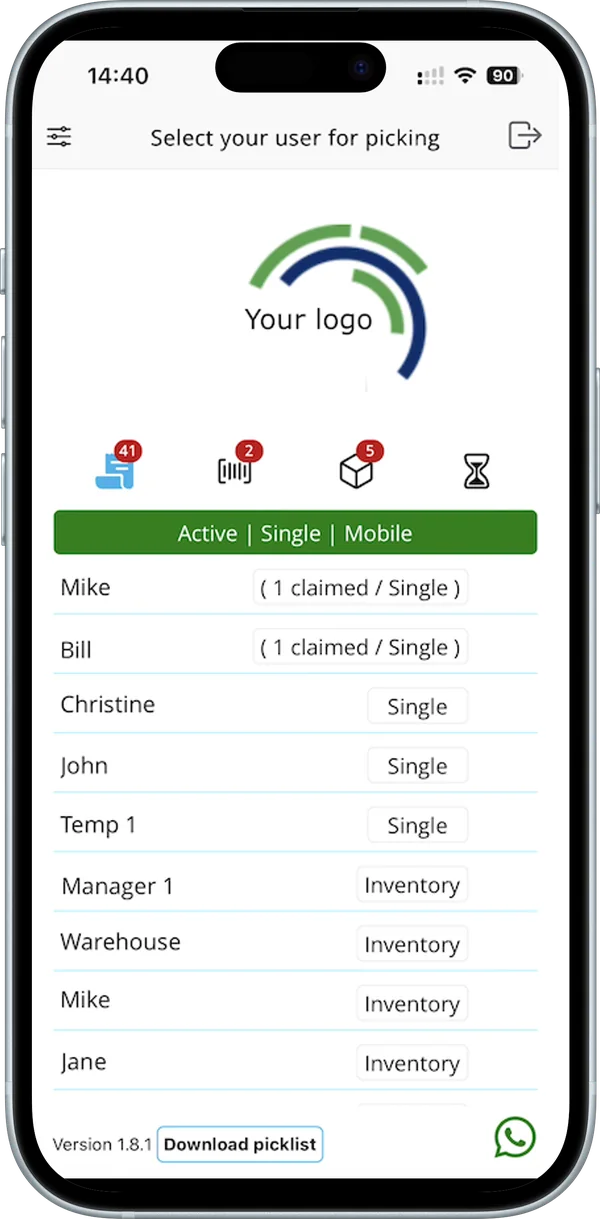
1. Open App Settings Go to App Settings via My Account on orderpickingapp.com or in the WordPress plugin. Under the Picking Type setting, switch from Single Order Picking to Batch Picking. Save the settings and restart the app on your device.
2. Select a Picker and Orders In the app, select the picker who will be processing the orders. Optionally, enable the setting to manually choose which orders are included in the batch.
3. Start Picking
* If no orders have been claimed by the picker, the app will automatically load the oldest 5 open orders.
* Alternatively, you can select specific orders by scanning the order number or manually entering it.
You’ll now see the total number of orders in your batch. Tap Start Picking to begin the process.
Batch Picking
We’ll group orders into batches of 5 per picking run. Each bin on the cart should be labeled A, B, C, D, and E. When starting a picking run, you’ll receive a run number that applies to the entire cart (e.g. Run 31).
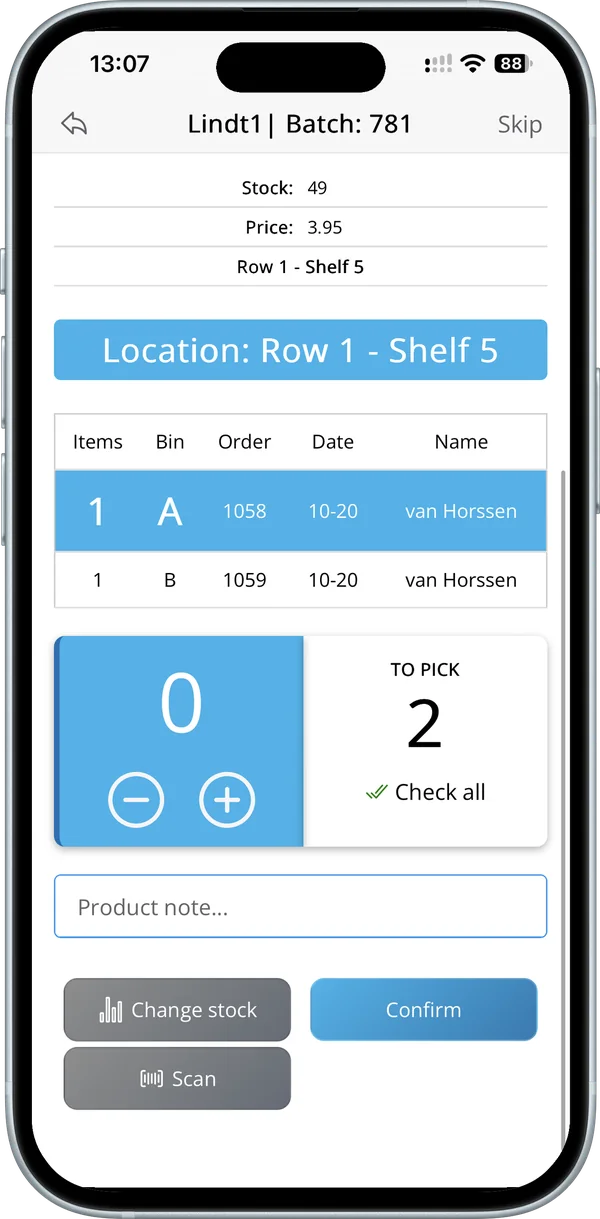
During picking, the first product may belong to multiple orders. In that case, the app will tell you which bin letter(s) to place the product in and how many units to pick for each.
Once all items have been picked, proceed to the packing screen. Here, you’ll see each order listed by its run number + bin letter (e.g. 31A, 31B, etc.). This allows you to match the picked items to the correct customer and prepare them for shipping.
o use the order picking app optimally with an external Bluetooth scanner and a keyboard, we recommend enabling the HiD Keyboard function on your scanner.
What does the HiD Keyboard function do?
This feature allows you to use both your keyboard and Bluetooth scanner simultaneously as input devices. It’s ideal for situations where you need to alternate between entering data via the keyboard and scanning with the Bluetooth scanner.
What if my scanner doesn’t have a HiD Keyboard function?
If your scanner doesn’t support this function, you can only use one input device at a time. This means you can either have the keyboard or the scanner active—but not both simultaneously.
Tip: Check your Bluetooth scanner’s manual to see how to enable the HiD Keyboard function. It’s often easy to activate through a specific settings mode or by scanning a configuration code.
With the right settings, you can get the most out of your order picking app!
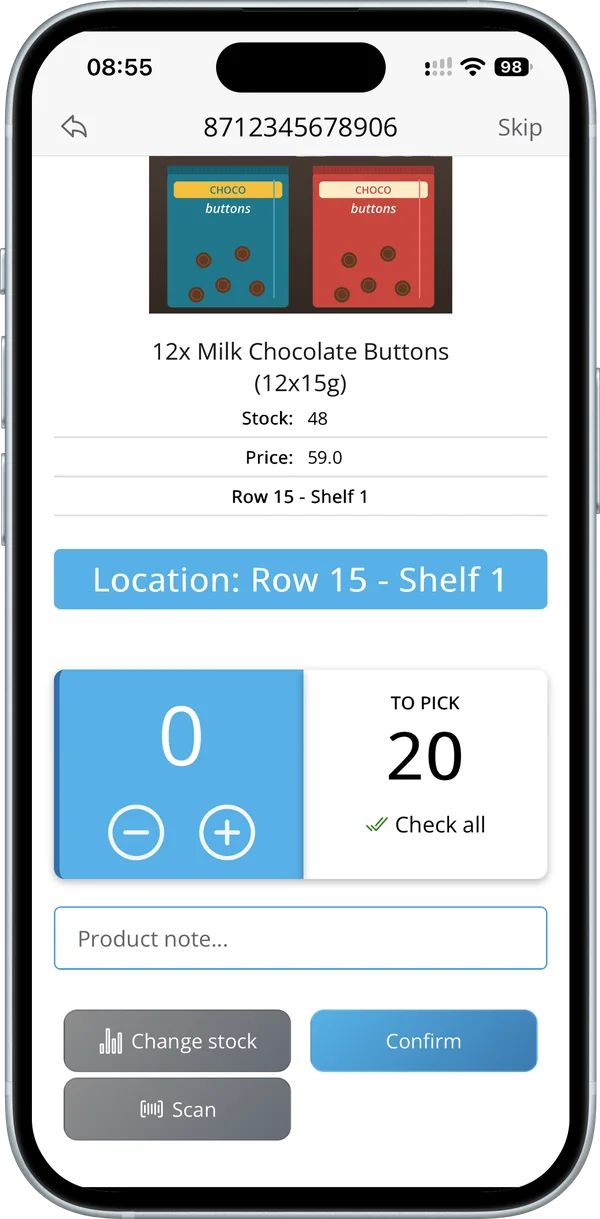
When you are order picking, you are already walking through the warehouse or the store. This is the perfect time to occasionally check the stock of a product. With the Inventory add-on we offer the option to scan the barcode or enter the sku/barcode (searching by product title is also possible for Woocommerce customers). We then retrieve the current stock of a product and this can be adjusted if necessary.
Inventory differences can be resolved during order picking. For example, consider products on a roll that are cut off during collection or to book new stock during a delivery.
Every shop has it’s own way of collecting orders. Some want to pick per order and others have multiple totes on a trolley. This is why we have the setting of the Order amount to pick at once.
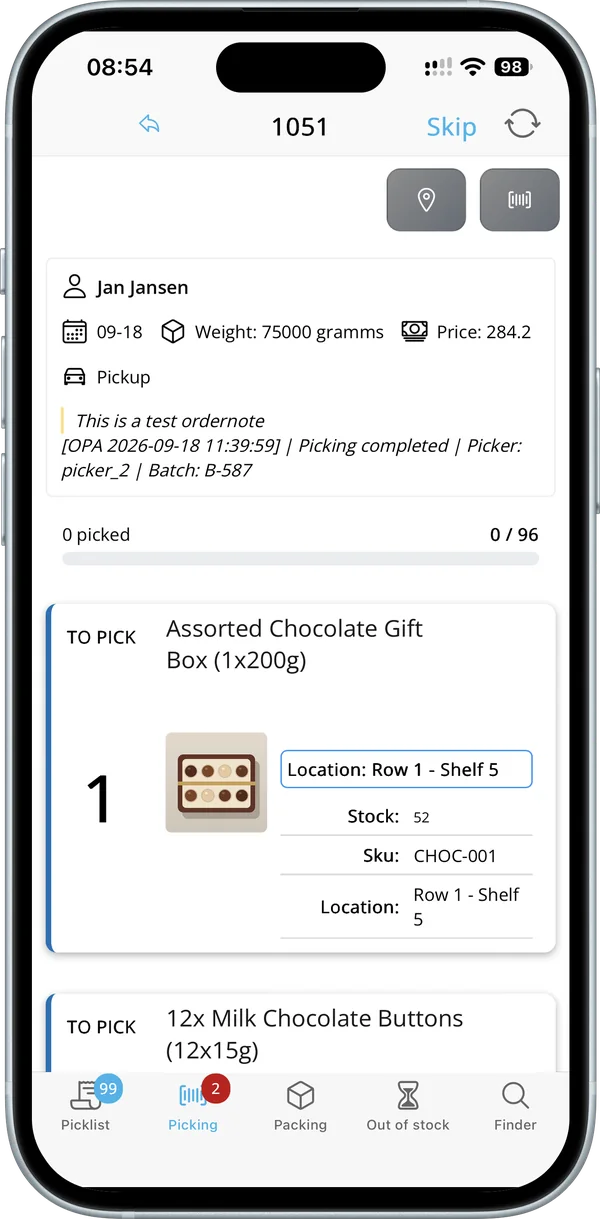
When picking a single order you will start with the complete order list of open orders in the app. Here you can choose the order to pick.
Single order picking
Batch picking
When selecting something other than single order we change the layout in the app a bit. If you have the option of 5 orders at once, we combine 5 orders in 1 picking-run. Each order will get a letter starting from A and a number (the batchnumber). These numbers will stick to the order true the whole process.
When batchpicking we will combine the orders so you will only stop at a product once (for multiple orders).