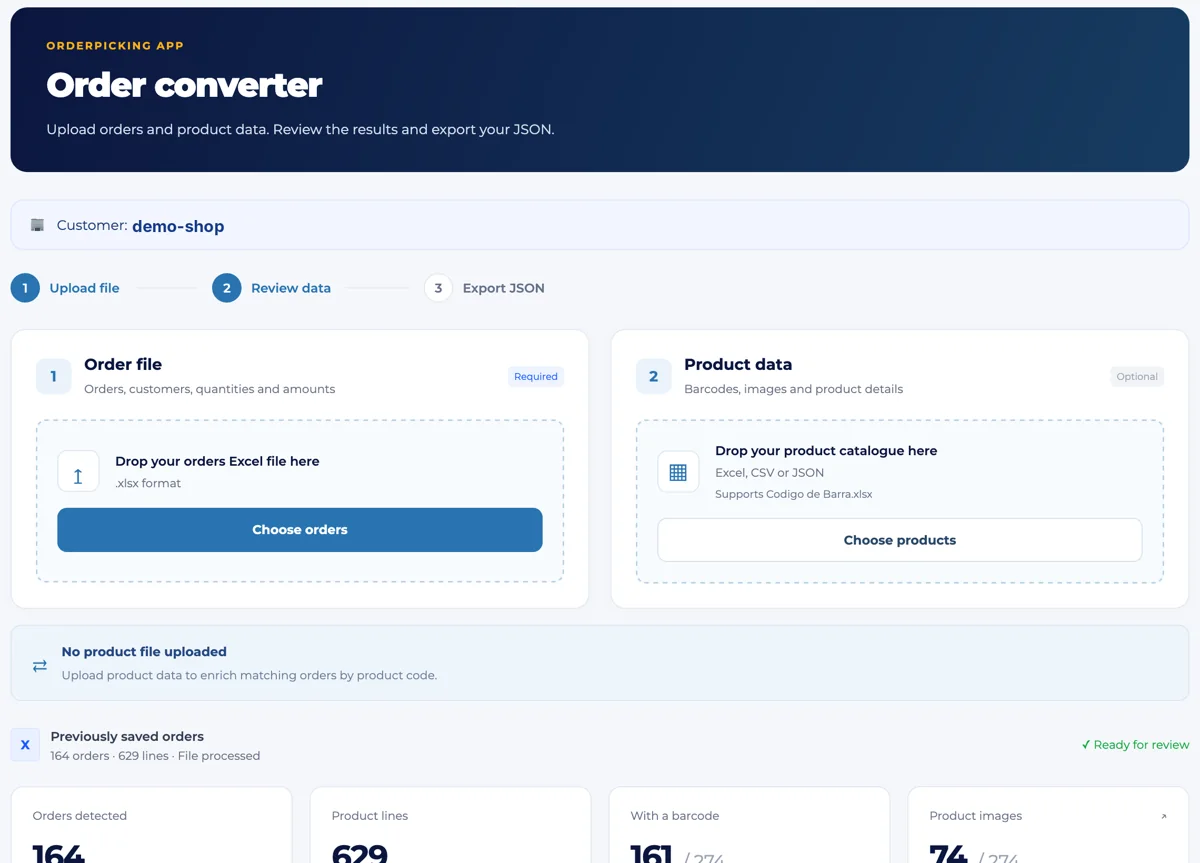
Can your system export orders, but not publish a JSON feed? Then you don’t need to build anything. You get your own upload page where you upload your orders as an Excel or CSV file. We convert them into the format Order Picking App needs, and your team picks them in the app like any other order.
When to use the order converter
- Your ERP, POS or order system can export orders to Excel or CSV, but has no API or JSON feed.
- You collect orders in a spreadsheet, for example from B2B customers or a marketplace.
- You want to start picking with the app without development work on your side.
Can your system publish a JSON feed? Then the Custom API is the direct route.
What we set up once
Every system exports its own columns. Send us an example of your export and we map your columns, such as order number, customer, product code, quantity and amount, to the fields Order Picking App needs. We connect the converter to your account and send you the link to your upload page. Bookmark it: you use the same page every time.
Step 1: Upload your order file
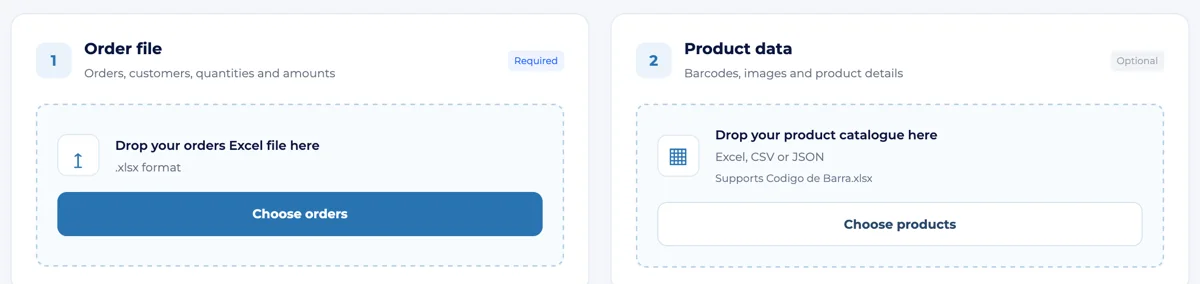
Open your upload page and choose your order file under Order file. This file is required and contains the orders, customers, quantities and amounts.
Step 2: Add product data (optional)
Under Product data you can add your product catalogue as Excel, CSV or JSON. The converter matches it to your orders by product code and adds barcodes, product images and product details. With barcodes, your pickers can check every item with a scan; with images, they see what they are looking for.
Step 3: Check the result
After processing you see what the converter found: the number of orders (grouped by order number), the product lines and unique products, and how many products have a barcode and a product image.

Are many products missing a barcode or image? Add or update your product file and upload it again.
Step 4: Review the orders
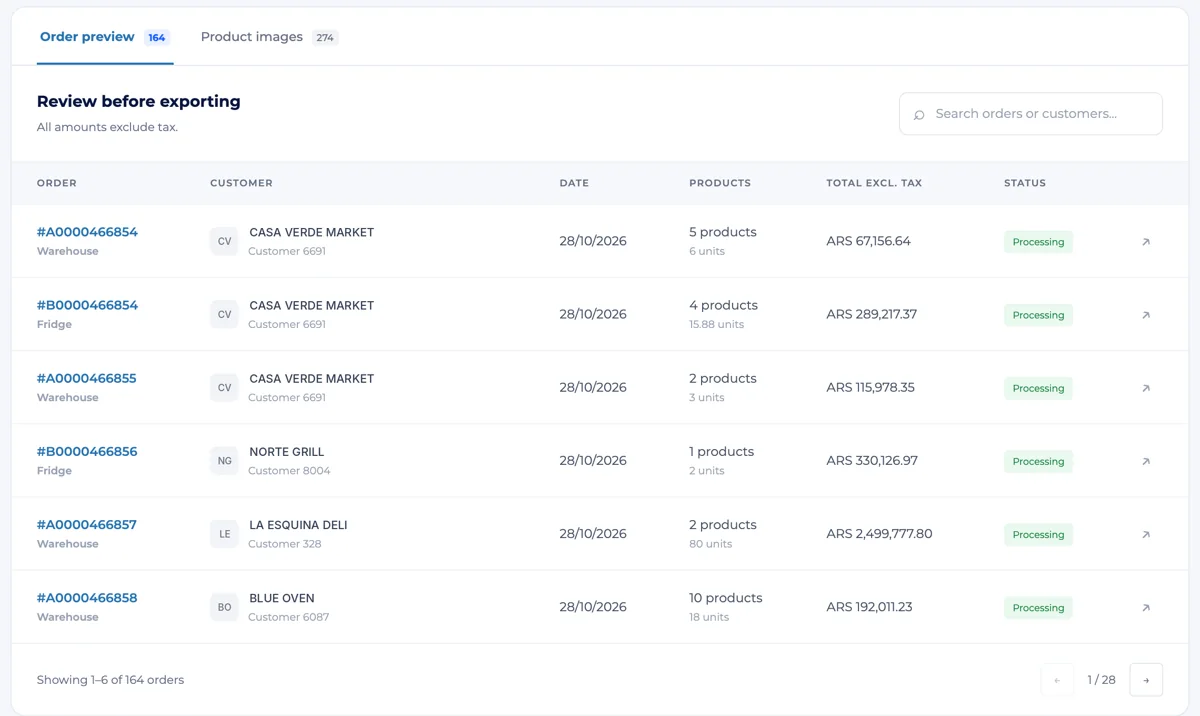
Under Order preview you check every order before it goes to the app: order number, customer, date, number of products and units, total and status. Search by order or customer. The Product images tab shows which images were matched.
Step 5: Save the orders
Save the converted orders. Because we connected the converter to your account, the orders you save reach Order Picking App and your team can start picking. You can also download or view the JSON.
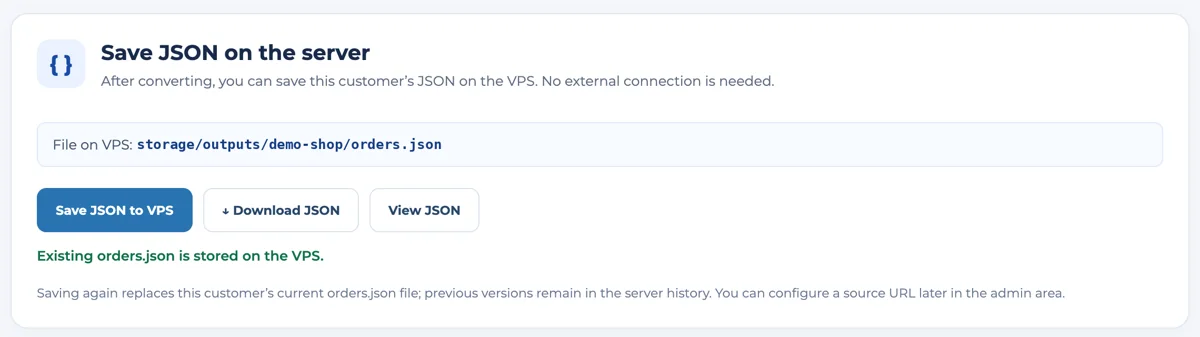
Saving again replaces the previous file with your new orders. Earlier versions are kept in the history.
Tips
- Upload a new file whenever new orders come in, for example every morning and after lunch.
- Keep the same export layout. The mapping is set up for your columns; if your export changes, let us know and we update it.
- Want the status of picked orders back in your own system? Set a webhook URL in your App Settings.
Want to use the order converter?
Send an example of your order export to support@orderpickingapp.com and we’ll tell you what’s possible for your system.
Try it in your own warehouse
30 days free on the Medium + Inventory + POS plan. The trial ends on its own.