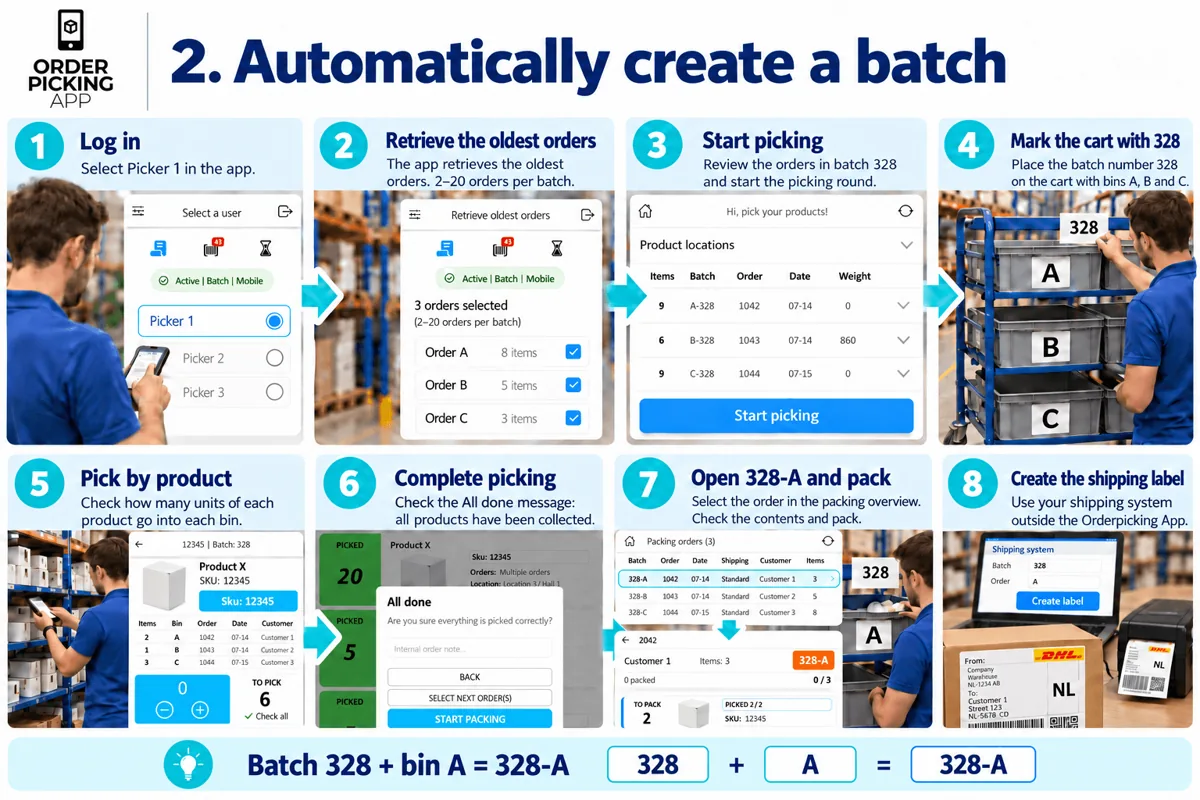
Let Orderpicking App prepare your next batch automatically, so your pickers can get started without selecting orders one by one. The app groups the oldest orders into a batch based on the batch size you have configured.
This gives your team a consistent workflow: prepare the batch, collect the products for several orders in one round, and use the batch number and bin letters to identify each order during packing.
Set your batch size
First, choose how many orders a picker should handle in each picking round. In the picker settings, you can select 2–20 orders per batch.
Choose a batch size that suits your picking cart, the number of bins available and the size of the orders you usually process. Each order in the batch needs its own bin, keeping products separated throughout the picking round.
Prepare the next batch
To begin a picking round, the picker opens Orderpicking App and selects their picker profile. The app retrieves the oldest orders according to the configured batch size and presents them together as a batch.
The picker reviews the batch and selects Start picking when ready. The app assigns each order to a bin and gives the batch its own number. Together, the batch number and bin letter help your team identify the correct order as it moves from picking to packing.
Clearly mark the picking cart
Before collecting products, make sure the batch number is clearly visible on the cart. You can write it on a small whiteboard attached to the cart or use another marker that is easy to read.
For example, if the app assigns batch number 328, mark the cart with 328 and keep the individual bins labelled A, B and C.
The cart number identifies the batch, while each bin letter identifies a separate order within that batch. Keep these markers visible until all orders on the cart have been packed.
Pick and distribute the products
During the picking round, the app shows which products to collect and the quantities required for each bin.
The picker follows the instructions, collects the products and places the correct quantities into the corresponding bins. If a product is needed for more than one order, check the quantity shown for each bin before moving on.
Continue through the batch until all picking instructions have been completed, then finish the picking round in the app. The cart is now ready for the packing team, with each order in its assigned bin.
Find and pack each order
In the packing overview, the packer uses the batch number and bin letter to find the correct order.
For example, 328-A identifies the order in bin A on the cart marked 328. This provides a clear reference between the order in the app and its physical location on the cart.
The packer opens the order, checks the contents of the corresponding bin and packs the products. Once packing is complete, they complete the packing step in Orderpicking App and create the shipping label in their own system.
Repeat this process for the remaining bins until every order in the batch has been packed.
Try Orderpicking App free for 30 days
Discover how automatic batch creation fits into your picking and packing workflow. Try Orderpicking App free for 30 days.
Try it in your own warehouse
30 days free on the Medium + Inventory + POS plan. The trial ends on its own.