The Smart way of Orderpicking Pick and pack with less mistakes and efficient routes.
Order picking for Mijnwebwinkel
Easily connect your Mijnwebwinkel webshop using simple steps, you don’t need any heavy technical knowledge for this. After linking your account to the API Key, Orderpicking will automatically import all orders and product data, including photo and stock.
Process orders for Mijnwebwinkel
Process your Mijnwebwinkel orders easily with the Orderpicking App app. Easily collect the products through stock locations, check the products using a barcode scanner (not required) and then complete the order immediately.
All orders and associated history can always be found in the clear order overview. This way, customer service can easily see the status of an order and/or make adjustments.
Use this flow when pickers need to choose which orders to include in their picking round.
One-time setup
In your webshop admin, enable Enable custom order select for batch picking in the Orderpicking App integration settings.
For each batch
After opening the app and selecting their picker profile, the picker adds orders by:
Selecting an order from the list.
Scanning an order barcode.
Entering an order number.
Orders are assigned to bins in the order they are added. The first order goes into bin A, the second into bin B, the third into bin C, and so on.
Once the selection is complete, the picker selects Create batch, writes the batch number on the small whiteboard attached to the cart and starts picking.
The app guides the picker through the products and shows how many units belong in each bin. When all products have been collected, the picker completes the round.
Packing follows the same process as an automatic batch: select the order in the packing overview, match its batch number and bin letter to the correct cart and bin, check the contents using the app and pack the order. Create the shipping label in your own system after completing packing.
Option 4: The webshop manager assigns orders
Use this flow when you want to organise the workload from your webshop admin before pickers begin.
One-time setup
Enable Enable manual order assigning to pickers in the Orderpicking App integration settings in your webshop admin.
For each batch
The webshop manager selects orders in the webshop admin and assigns them to a picker in bulk. This allows the manager to prepare work for different pickers at the start of the day.
The picker opens the app and selects their usual picker profile. The assigned work is ready. They review the products to collect and select Start picking.
Keep the batch number clearly visible on the cart. The picker follows the app’s instructions, distributes the products across the correct bins and completes the picking round.
The packer opens the corresponding order from the packing overview. They use the batch number and bin letter to find the correct bin, check the products against the app and pack the order. After completing packing, they create the shipping label in their own shipping system.
Keep every order easy to identify
For batches identified by number and bin letter, use this simple rule:
Batch 328 + bin A = order 328-A
Keep the batch number visible on the cart and the bin letters easy to read. This helps the packer match each order in the app to the products collected for that customer.
For the printed-label flow, keep the order label inside its assigned bin so the packer can scan it directly.
Choose the flow that fits your team
Use printed labels when your team identifies orders by scanning a label in the bin. Choose automatic batches to work through the oldest orders, custom selection to give pickers control over their rounds, or manual assignment to plan the workload from your webshop admin.
Whichever option you choose, the process stays consistent: collect the products, keep orders separate, check and pack with the app, then create the shipping label in your own system.
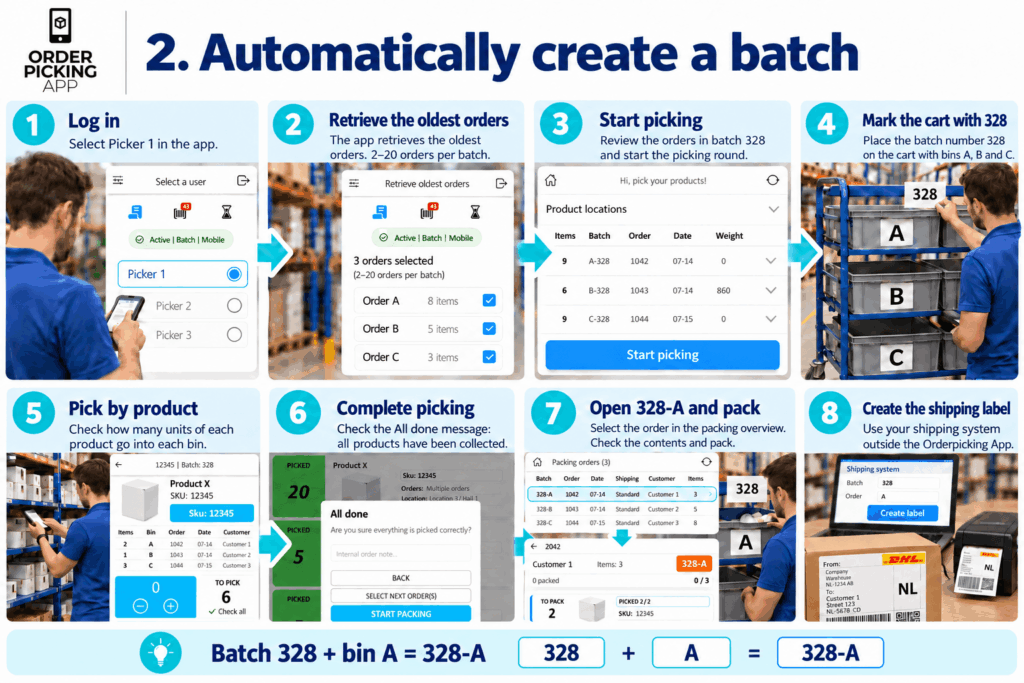
Option 2: Automatically create a batch
Use this flow to let the app prepare a batch from your oldest orders.
Set your batch size
Choose how many orders the picker should handle per round in the picker settings. You can set this to 2–20 orders per batch.
For each batch
The picker opens the app and selects their picker profile. Orderpicking App retrieves the oldest orders according to the configured batch size.
The picker reviews the batch and selects Start picking. Each order is assigned to a bin, and the batch receives its own number.
Write the batch number on a small whiteboard attached to the cart, or use another clearly visible marker. For example, mark the cart with 328 and keep the bins labelled A, B and C.
The app shows each product and the quantities required for each bin. The picker collects and distributes the products, then completes the picking round.
The packer finds the order in the packing overview using its batch number and bin letter. 328-A, for example, identifies the order in bin A on the cart marked 328. They open the order, check and pack the contents, complete packing and create the shipping label in their own system.
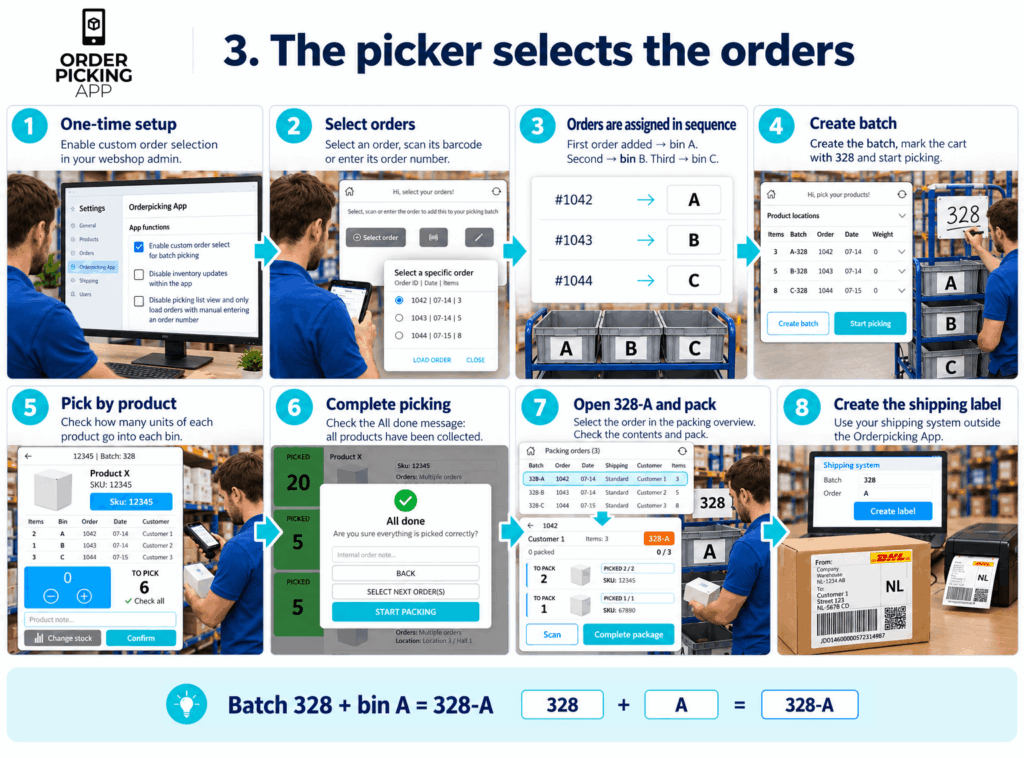
Option 3: The picker selects the orders
Use this flow when pickers need to choose which orders to include in their picking round.
One-time setup
In your webshop admin, enable Enable custom order select for batch picking in the Orderpicking App integration settings.
For each batch
After opening the app and selecting their picker profile, the picker adds orders by:
Selecting an order from the list.
Scanning an order barcode.
Entering an order number.
Orders are assigned to bins in the order they are added. The first order goes into bin A, the second into bin B, the third into bin C, and so on.
Once the selection is complete, the picker selects Create batch, writes the batch number on the small whiteboard attached to the cart and starts picking.
The app guides the picker through the products and shows how many units belong in each bin. When all products have been collected, the picker completes the round.
Packing follows the same process as an automatic batch: select the order in the packing overview, match its batch number and bin letter to the correct cart and bin, check the contents using the app and pack the order. Create the shipping label in your own system after completing packing.
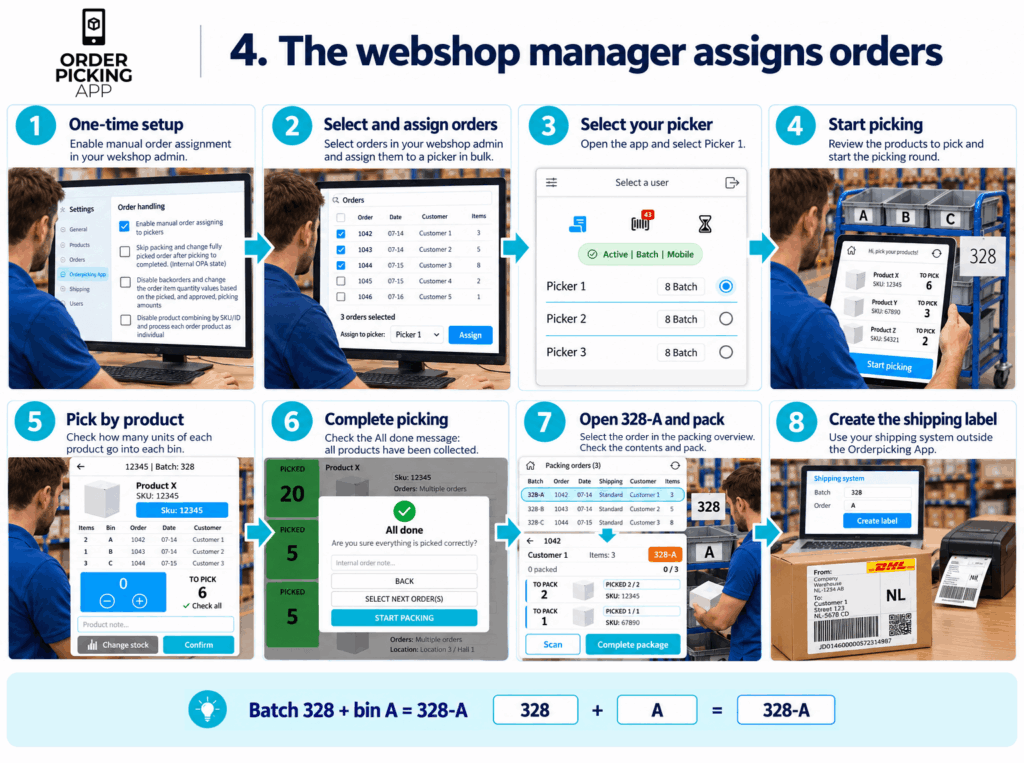
Option 4: The webshop manager assigns orders
Use this flow when you want to organise the workload from your webshop admin before pickers begin.
One-time setup
Enable Enable manual order assigning to pickers in the Orderpicking App integration settings in your webshop admin.
For each batch
The webshop manager selects orders in the webshop admin and assigns them to a picker in bulk. This allows the manager to prepare work for different pickers at the start of the day.
The picker opens the app and selects their usual picker profile. The assigned work is ready. They review the products to collect and select Start picking.
Keep the batch number clearly visible on the cart. The picker follows the app’s instructions, distributes the products across the correct bins and completes the picking round.
The packer opens the corresponding order from the packing overview. They use the batch number and bin letter to find the correct bin, check the products against the app and pack the order. After completing packing, they create the shipping label in their own shipping system.
Keep every order easy to identify
For batches identified by number and bin letter, use this simple rule:
Batch 328 + bin A = order 328-A
Keep the batch number visible on the cart and the bin letters easy to read. This helps the packer match each order in the app to the products collected for that customer.
For the printed-label flow, keep the order label inside its assigned bin so the packer can scan it directly.
Choose the flow that fits your team
Use printed labels when your team identifies orders by scanning a label in the bin. Choose automatic batches to work through the oldest orders, custom selection to give pickers control over their rounds, or manual assignment to plan the workload from your webshop admin.
Whichever option you choose, the process stays consistent: collect the products, keep orders separate, check and pack with the app, then create the shipping label in your own system.
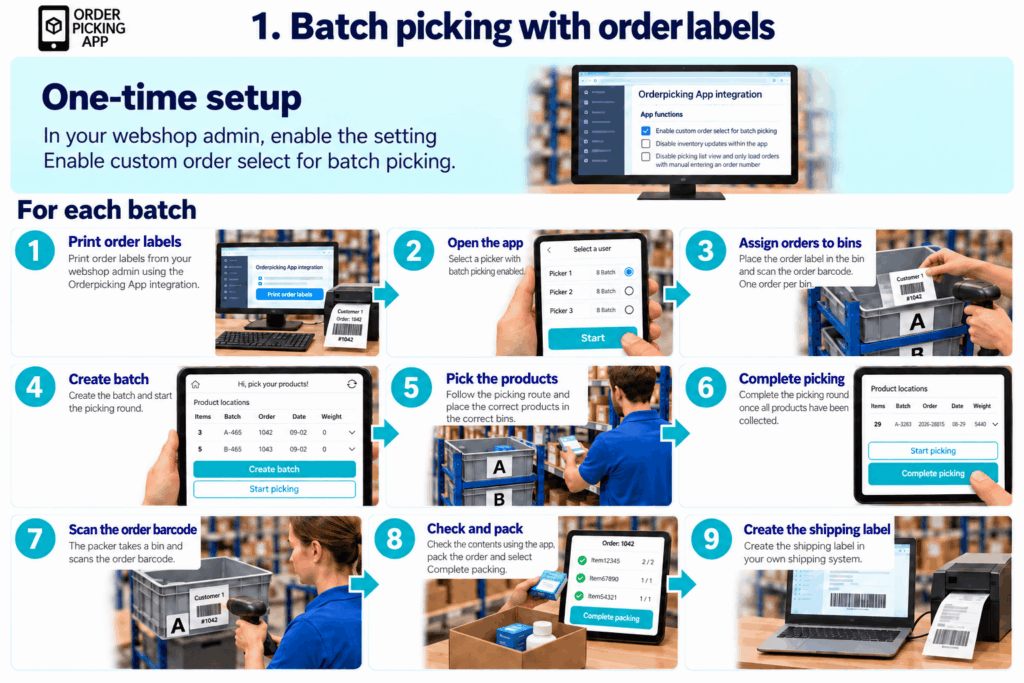
Option 1: Batch picking with order labels
Use this flow when you want a printed order label to stay with each order throughout picking and packing.
One-time setup
In the settings of the Orderpicking App integration in your webshop admin, enable Enable custom order select for batch picking.
For each batch
Print the order labels from your webshop admin using the Orderpicking App integration. Open the app and select a picker with batch picking enabled.
Place the first order label in bin A and scan its order barcode to add the order. Place the next label in bin B and scan that barcode. Continue until you have added all the orders for the round.
Select Create batch and start picking. Follow the app’s instructions and place the products in the correct bins. When everything has been collected, complete the picking round.
At the packing station, the packer takes a bin and scans the order barcode on the label inside it. They check the contents against the order in the app, pack the products and complete packing. Finally, they create the shipping label in their own shipping system.
Option 2: Automatically create a batch
Use this flow to let the app prepare a batch from your oldest orders.
Set your batch size
Choose how many orders the picker should handle per round in the picker settings. You can set this to 2–20 orders per batch.
For each batch
The picker opens the app and selects their picker profile. Orderpicking App retrieves the oldest orders according to the configured batch size.
The picker reviews the batch and selects Start picking. Each order is assigned to a bin, and the batch receives its own number.
Write the batch number on a small whiteboard attached to the cart, or use another clearly visible marker. For example, mark the cart with 328 and keep the bins labelled A, B and C.
The app shows each product and the quantities required for each bin. The picker collects and distributes the products, then completes the picking round.
The packer finds the order in the packing overview using its batch number and bin letter. 328-A, for example, identifies the order in bin A on the cart marked 328. They open the order, check and pack the contents, complete packing and create the shipping label in their own system.
Option 3: The picker selects the orders
Use this flow when pickers need to choose which orders to include in their picking round.
One-time setup
In your webshop admin, enable Enable custom order select for batch picking in the Orderpicking App integration settings.
For each batch
After opening the app and selecting their picker profile, the picker adds orders by:
Selecting an order from the list.
Scanning an order barcode.
Entering an order number.
Orders are assigned to bins in the order they are added. The first order goes into bin A, the second into bin B, the third into bin C, and so on.
Once the selection is complete, the picker selects Create batch, writes the batch number on the small whiteboard attached to the cart and starts picking.
The app guides the picker through the products and shows how many units belong in each bin. When all products have been collected, the picker completes the round.
Packing follows the same process as an automatic batch: select the order in the packing overview, match its batch number and bin letter to the correct cart and bin, check the contents using the app and pack the order. Create the shipping label in your own system after completing packing.
Option 4: The webshop manager assigns orders
Use this flow when you want to organise the workload from your webshop admin before pickers begin.
One-time setup
Enable Enable manual order assigning to pickers in the Orderpicking App integration settings in your webshop admin.
For each batch
The webshop manager selects orders in the webshop admin and assigns them to a picker in bulk. This allows the manager to prepare work for different pickers at the start of the day.
The picker opens the app and selects their usual picker profile. The assigned work is ready. They review the products to collect and select Start picking.
Keep the batch number clearly visible on the cart. The picker follows the app’s instructions, distributes the products across the correct bins and completes the picking round.
The packer opens the corresponding order from the packing overview. They use the batch number and bin letter to find the correct bin, check the products against the app and pack the order. After completing packing, they create the shipping label in their own shipping system.
Keep every order easy to identify
For batches identified by number and bin letter, use this simple rule:
Batch 328 + bin A = order 328-A
Keep the batch number visible on the cart and the bin letters easy to read. This helps the packer match each order in the app to the products collected for that customer.
For the printed-label flow, keep the order label inside its assigned bin so the packer can scan it directly.
Choose the flow that fits your team
Use printed labels when your team identifies orders by scanning a label in the bin. Choose automatic batches to work through the oldest orders, custom selection to give pickers control over their rounds, or manual assignment to plan the workload from your webshop admin.
Whichever option you choose, the process stays consistent: collect the products, keep orders separate, check and pack with the app, then create the shipping label in your own system.
Pick multiple orders in one round while keeping every customer’s products separate. With Orderpicking App, each order is assigned to its own bin on your picking cart. The app guides your picker through the products and shows how many units belong in each bin.
You can organise your batches in four ways: use printed order labels, automatically retrieve the oldest orders, let the picker select orders or assign orders from your webshop admin.
How batch picking works
Prepare a picking cart with clearly labelled bins: A, B, C and so on. Each bin holds one customer order.
During the picking round, Orderpicking App combines the products from the orders into a picking list. For each product, the picker sees how many units to collect and which bins they belong in. If the same product appears in several orders, the picker can collect it for those orders together.
Once picking is complete, the packer opens each order, checks the contents using the app and packs the products. The shipping label is then created in your own shipping system.
Option 1: Batch picking with order labels
Use this flow when you want a printed order label to stay with each order throughout picking and packing.
One-time setup
In the settings of the Orderpicking App integration in your webshop admin, enable Enable custom order select for batch picking.
For each batch
Print the order labels from your webshop admin using the Orderpicking App integration. Open the app and select a picker with batch picking enabled.
Place the first order label in bin A and scan its order barcode to add the order. Place the next label in bin B and scan that barcode. Continue until you have added all the orders for the round.
Select Create batch and start picking. Follow the app’s instructions and place the products in the correct bins. When everything has been collected, complete the picking round.
At the packing station, the packer takes a bin and scans the order barcode on the label inside it. They check the contents against the order in the app, pack the products and complete packing. Finally, they create the shipping label in their own shipping system.
Option 2: Automatically create a batch
Use this flow to let the app prepare a batch from your oldest orders.
Set your batch size
Choose how many orders the picker should handle per round in the picker settings. You can set this to 2–20 orders per batch.
For each batch
The picker opens the app and selects their picker profile. Orderpicking App retrieves the oldest orders according to the configured batch size.
The picker reviews the batch and selects Start picking. Each order is assigned to a bin, and the batch receives its own number.
Write the batch number on a small whiteboard attached to the cart, or use another clearly visible marker. For example, mark the cart with 328 and keep the bins labelled A, B and C.
The app shows each product and the quantities required for each bin. The picker collects and distributes the products, then completes the picking round.
The packer finds the order in the packing overview using its batch number and bin letter. 328-A, for example, identifies the order in bin A on the cart marked 328. They open the order, check and pack the contents, complete packing and create the shipping label in their own system.
Option 3: The picker selects the orders
Use this flow when pickers need to choose which orders to include in their picking round.
One-time setup
In your webshop admin, enable Enable custom order select for batch picking in the Orderpicking App integration settings.
For each batch
After opening the app and selecting their picker profile, the picker adds orders by:
Selecting an order from the list.
Scanning an order barcode.
Entering an order number.
Orders are assigned to bins in the order they are added. The first order goes into bin A, the second into bin B, the third into bin C, and so on.
Once the selection is complete, the picker selects Create batch, writes the batch number on the small whiteboard attached to the cart and starts picking.
The app guides the picker through the products and shows how many units belong in each bin. When all products have been collected, the picker completes the round.
Packing follows the same process as an automatic batch: select the order in the packing overview, match its batch number and bin letter to the correct cart and bin, check the contents using the app and pack the order. Create the shipping label in your own system after completing packing.
Option 4: The webshop manager assigns orders
Use this flow when you want to organise the workload from your webshop admin before pickers begin.
One-time setup
Enable Enable manual order assigning to pickers in the Orderpicking App integration settings in your webshop admin.
For each batch
The webshop manager selects orders in the webshop admin and assigns them to a picker in bulk. This allows the manager to prepare work for different pickers at the start of the day.
The picker opens the app and selects their usual picker profile. The assigned work is ready. They review the products to collect and select Start picking.
Keep the batch number clearly visible on the cart. The picker follows the app’s instructions, distributes the products across the correct bins and completes the picking round.
The packer opens the corresponding order from the packing overview. They use the batch number and bin letter to find the correct bin, check the products against the app and pack the order. After completing packing, they create the shipping label in their own shipping system.
Keep every order easy to identify
For batches identified by number and bin letter, use this simple rule:
Batch 328 + bin A = order 328-A
Keep the batch number visible on the cart and the bin letters easy to read. This helps the packer match each order in the app to the products collected for that customer.
For the printed-label flow, keep the order label inside its assigned bin so the packer can scan it directly.
Choose the flow that fits your team
Use printed labels when your team identifies orders by scanning a label in the bin. Choose automatic batches to work through the oldest orders, custom selection to give pickers control over their rounds, or manual assignment to plan the workload from your webshop admin.
Whichever option you choose, the process stays consistent: collect the products, keep orders separate, check and pack with the app, then create the shipping label in your own system.
Step 1 – Mijnwebwinkel
Log in to your Mijnwebwinkel account and navigate to:
Click Add Token and select Order Picking App as the integration partner. Then click Save.
After saving, click Show Token to display the generated token. Copy this token, as you will need it to connect your webshop to Order Picking App.
Step 2 – Orderpickingapp.com
Go to Orderpickingapp.com and create an account or log in to your existing account.
Choose your preferred subscription plan to start your 30-day free trial. The trial period ends automatically and does not renew without your approval.
Fill in all required details, select Mijnwebwinkel as your platform, and create a password. Once registration is complete, you will receive an email containing your account details. Keep this email in a safe place for future reference.
Step 3 – Connect Mijnwebwinkel to Order Picking App
Open the settings page of your Order Picking App account.
Paste the token you copied from Mijnwebwinkel into the designated field and save your settings.
Order Picking App will automatically validate the connection through the Mijnwebwinkel API. Once the validation is successful, your webshop is connected and your orders will start synchronizing automatically.
Step 4 – Install the Mobile App
Download the Order Picking App on your smartphone:
Apple App Store (iPhone)
Google Play Store (Android)
Search for Order Picking App and install the application.
Step 5 – Connect the Mobile App
Your webshop is now connected. The final step is linking the mobile app to your account.
In the Order Picking App dashboard, go to Settings and open your API Key (barcode + numbers).
Open the mobile app and tap Scan API Key. Your phone’s camera will open.
Scan the barcode and save the connection in the app.
Once the scan is completed successfully, the mobile app is connected to your account and you are ready to start picking orders.