Guides · 11 step-by-step guides
Guides for Orderpicking App
Everything you need to set up the app and run your warehouse: settings, single and batch picking, picking routes, packing and the tools that speed up your team.
- Screens and infographics for every step
- Short videos, all under two minutes
- For every platform, with platform notes where needed
New here? Start with these four
Follow them in order and your team is picking and packing with the app.
All guides
Filter by topic or platform, or search for what you need.
-
 All settings, step by step
Set up Orderpicking App in six steps, from connecting your webshop to the tools that speed up your warehouse, with what every setting does.
Read the guide
All settings, step by step
Set up Orderpicking App in six steps, from connecting your webshop to the tools that speed up your warehouse, with what every setting does.
Read the guide
-
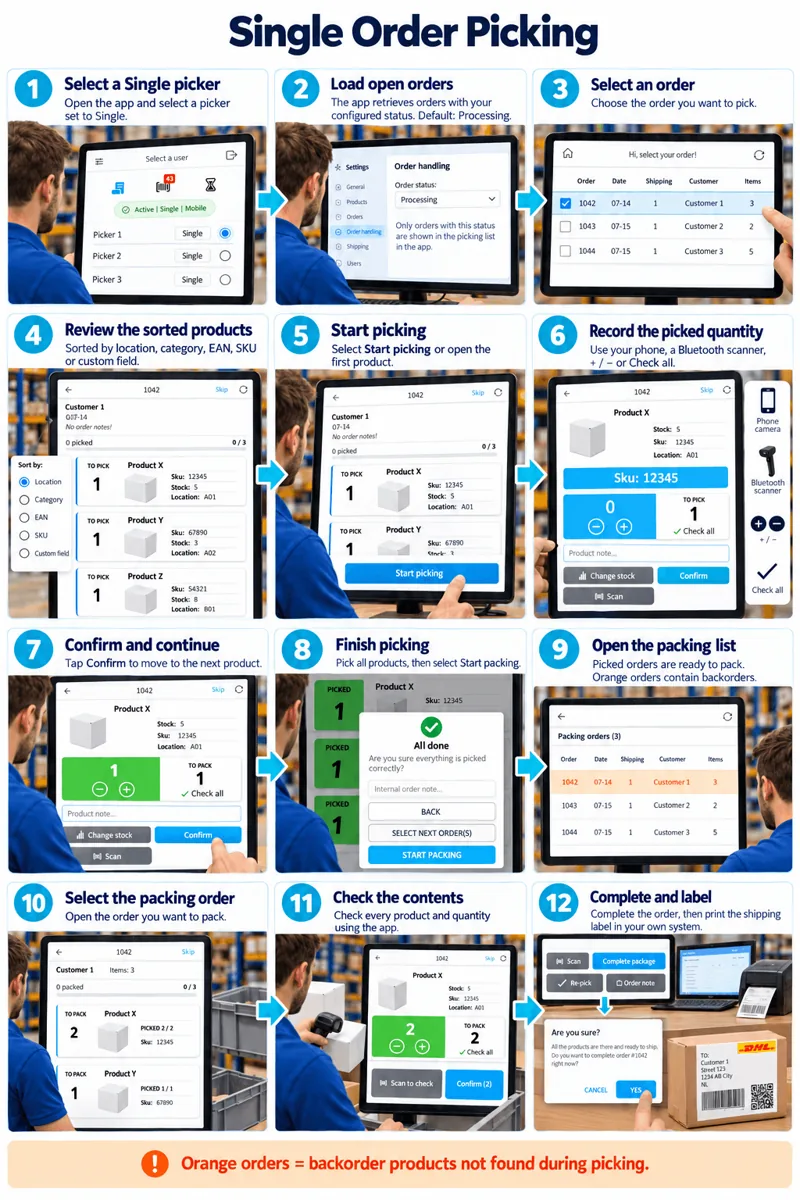 Single order picking
Guide your team through one order at a time: select an order, collect and confirm the products, then check and complete it at packing.
Read the guide
Single order picking
Guide your team through one order at a time: select an order, collect and confirm the products, then check and complete it at packing.
Read the guide
-
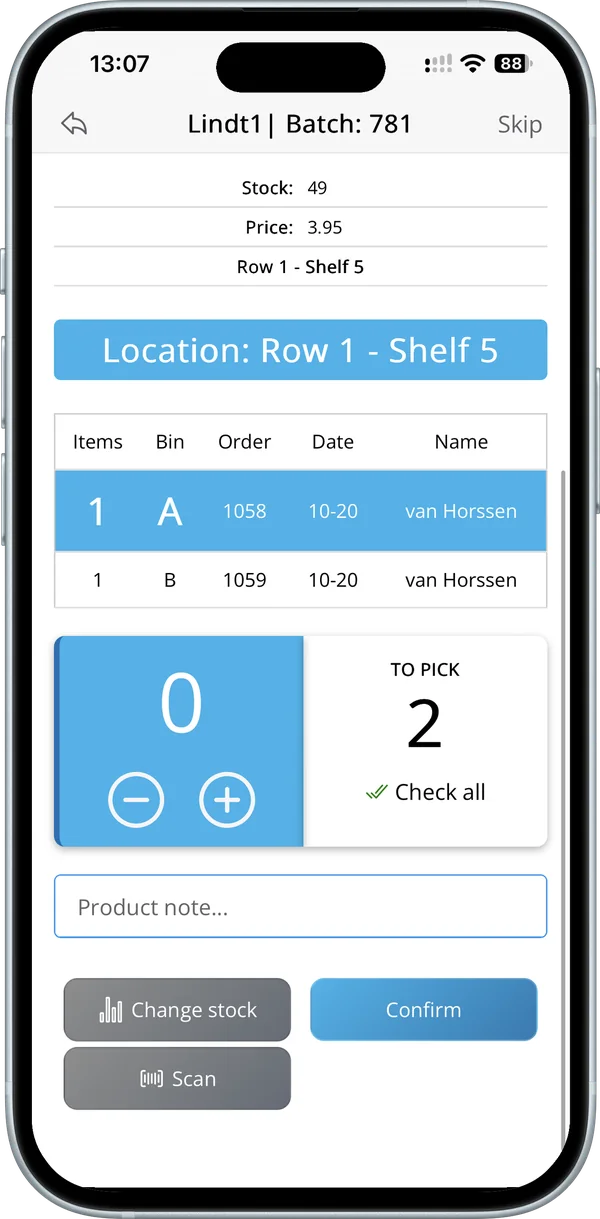 Batch picking: four ways
Pick several orders in one round with a bin per order. Four ways to build a batch: order labels, oldest orders, picker selects or manager assigns.
Read the guide
Batch picking: four ways
Pick several orders in one round with a bin per order. Four ways to build a batch: order labels, oldest orders, picker selects or manager assigns.
Read the guide
-
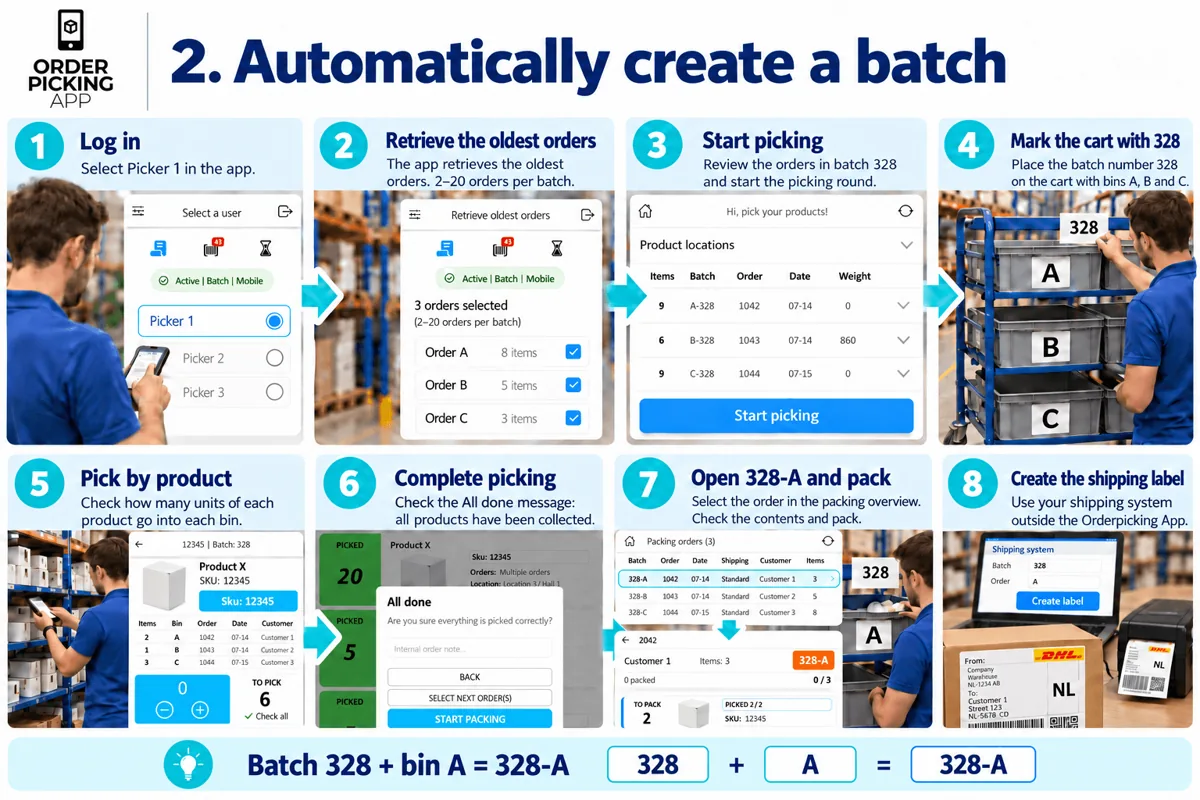 Batch from your oldest orders
Let the app group your oldest orders into the next batch automatically, based on your batch size, so pickers can start right away.
Read the guide
Batch from your oldest orders
Let the app group your oldest orders into the next batch automatically, based on your batch size, so pickers can start right away.
Read the guide
-
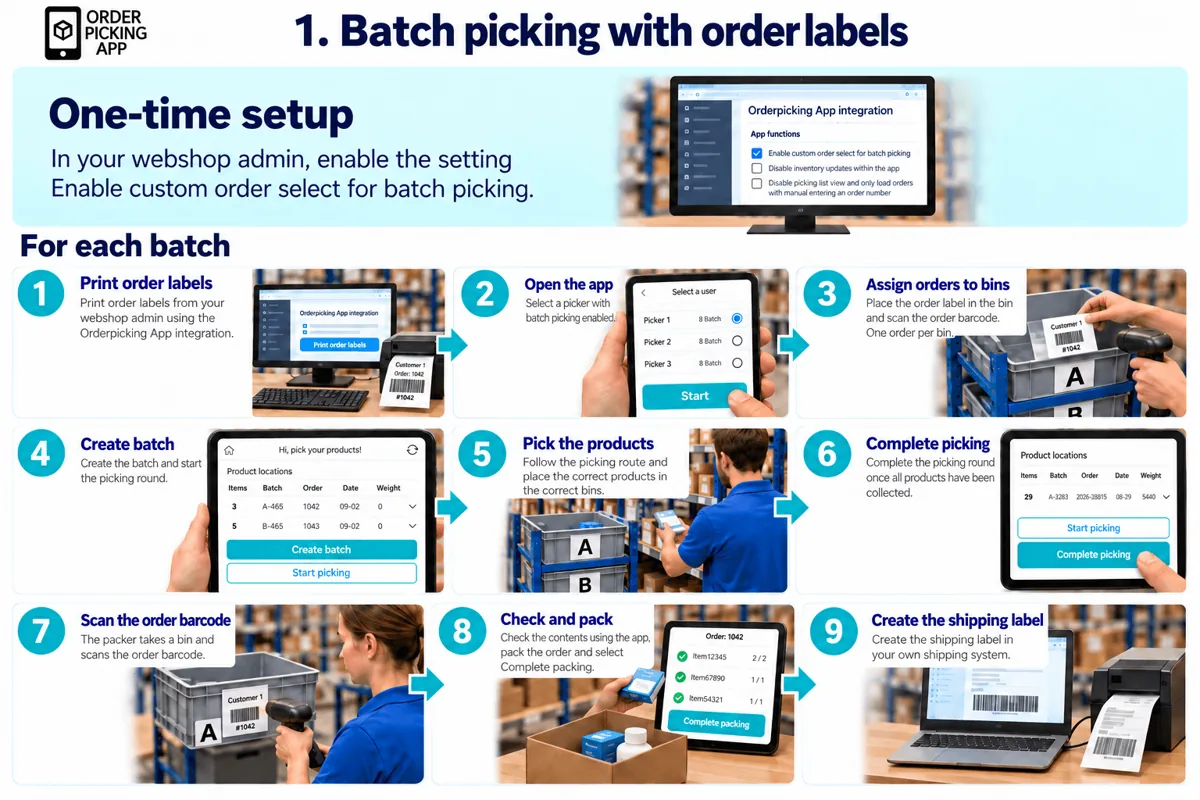
Batch picking with order labels
Print an order label for each bin and scan it to add the order to your batch. The label stays with the order through picking and packing.
Read the guide
-
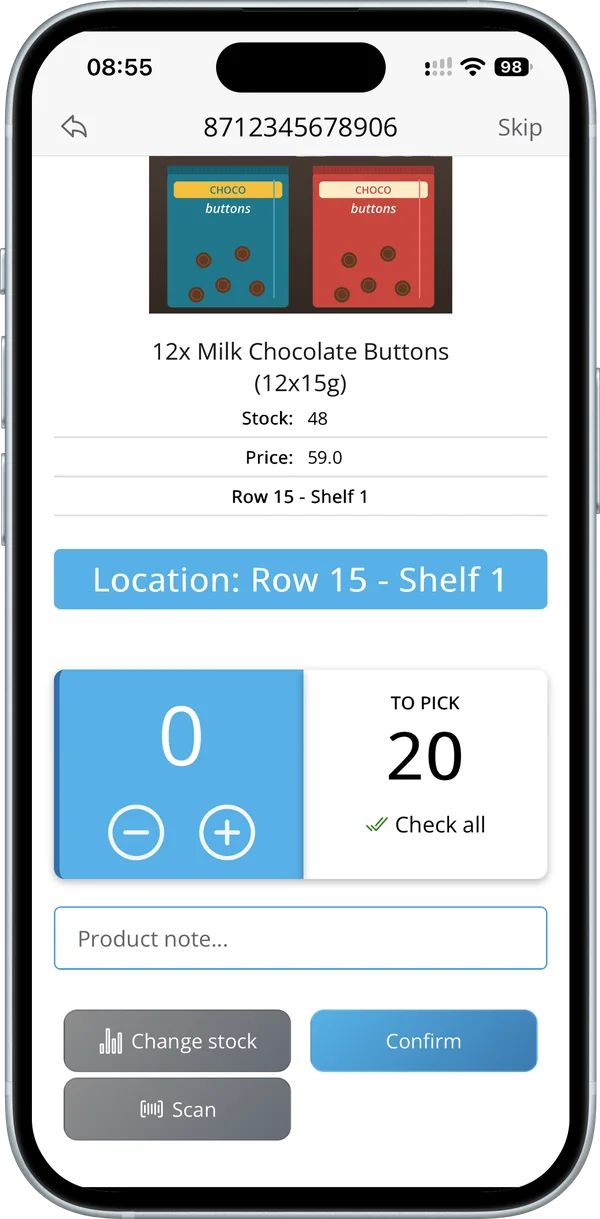 Picking route for WooCommerce
Give every WooCommerce product or variation its own location, set your walking order and let the app sort every pick list by route.
Read the guide
Picking route for WooCommerce
Give every WooCommerce product or variation its own location, set your walking order and let the app sort every pick list by route.
Read the guide
-
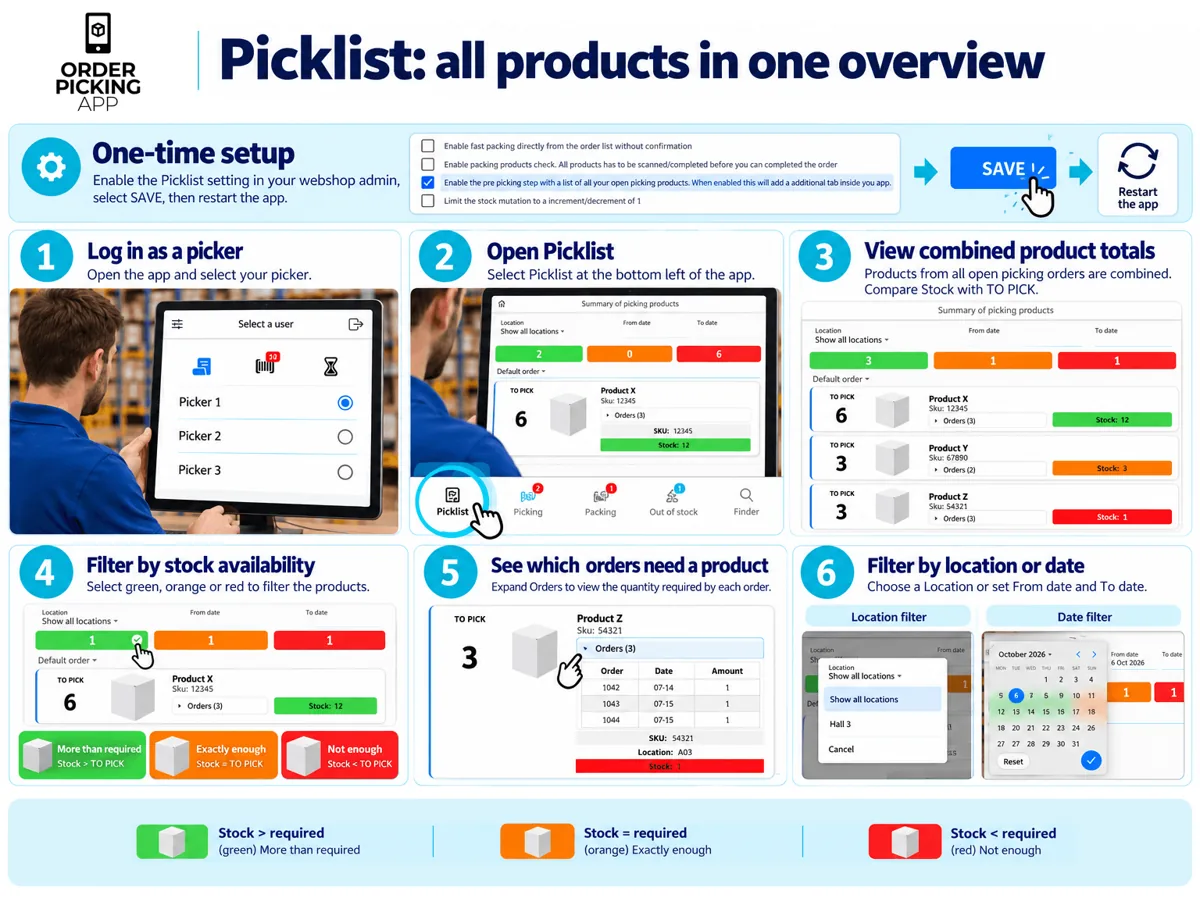 Picklist
See the total quantity of every product across all open orders, compare it with your stock and filter by location or date.
Read the guide
Picklist
See the total quantity of every product across all open orders, compare it with your stock and filter by location or date.
Read the guide
-
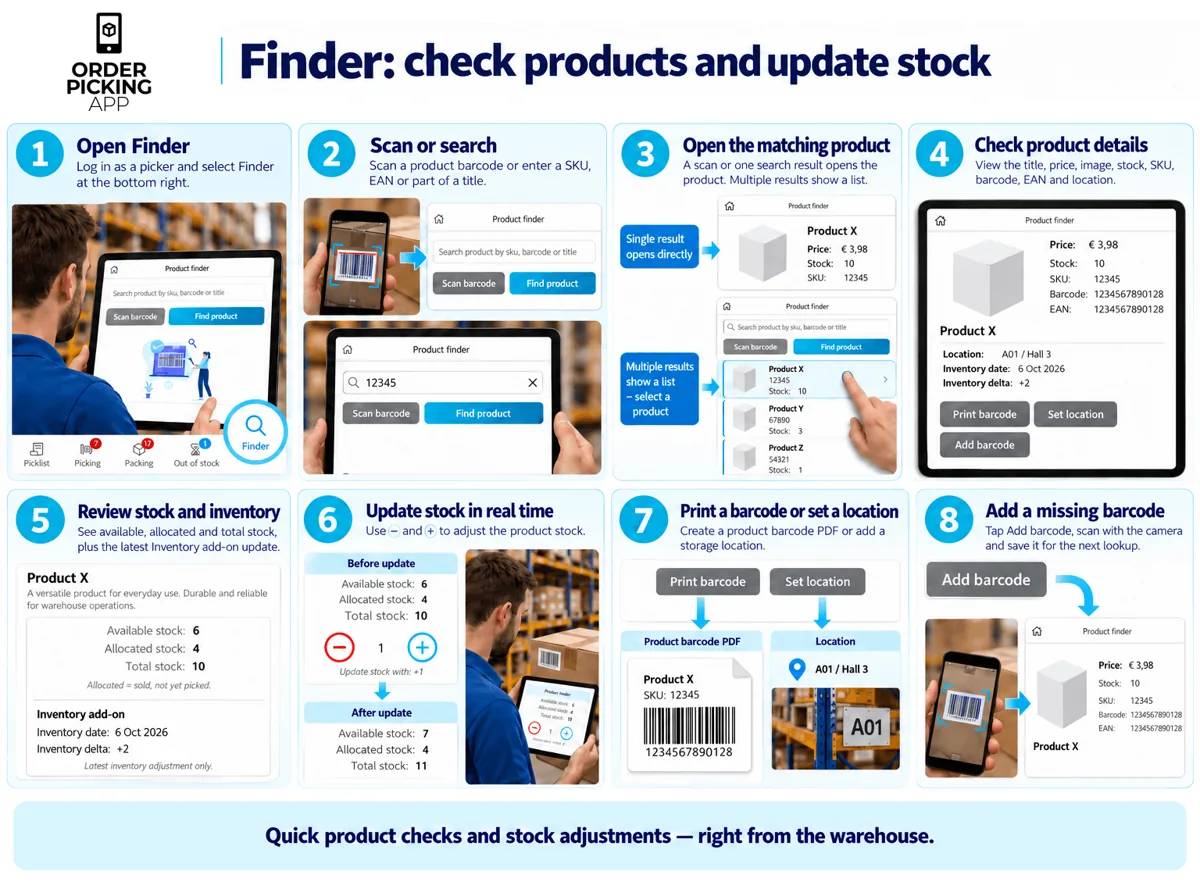 Finder
Look up a product by scanning or searching, check its details and stock, adjust stock in real time and create a barcode PDF.
Read the guide
Finder
Look up a product by scanning or searching, check its details and stock, adjust stock in real time and create a barcode PDF.
Read the guide
-
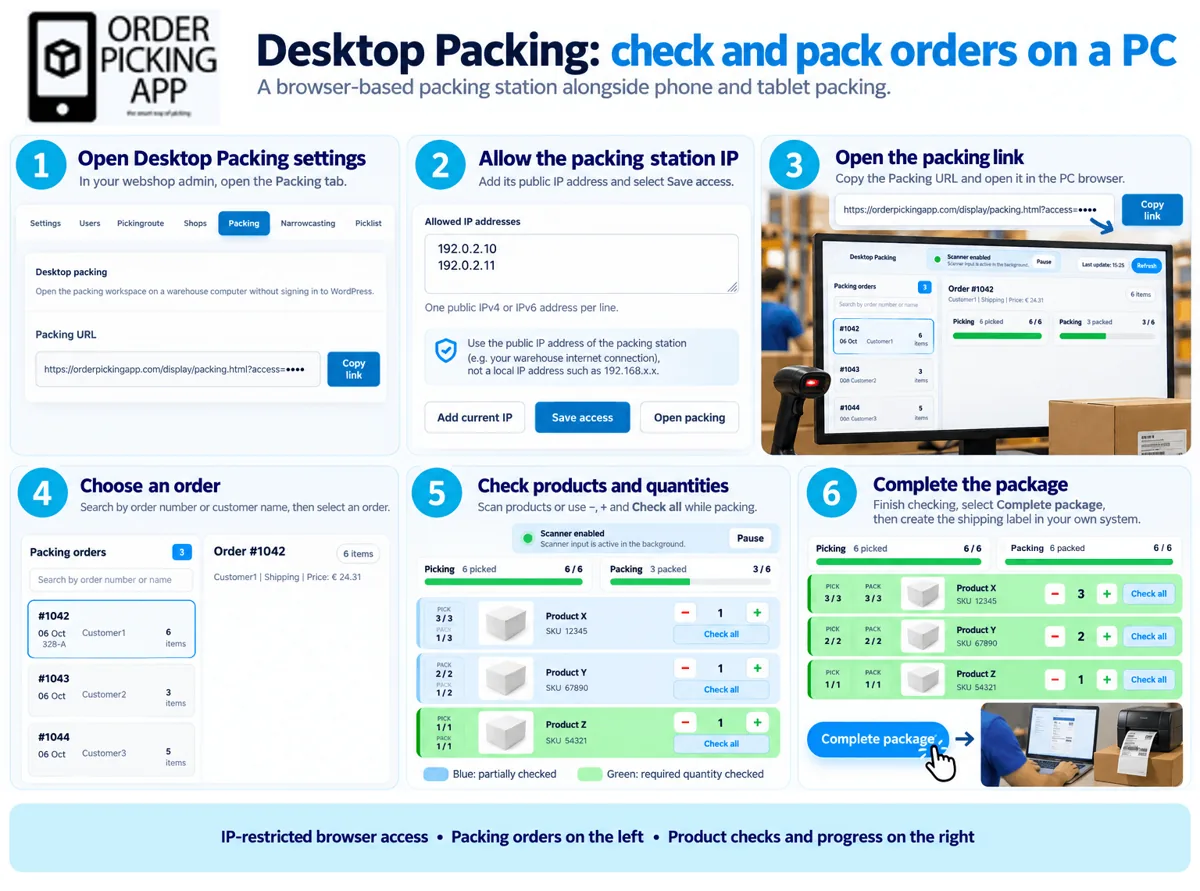 Desktop packing
Turn your warehouse PC into a packing station: find an order, check every product and quantity in the browser and complete the package.
Read the guide
Desktop packing
Turn your warehouse PC into a packing station: find an order, check every product and quantity in the browser and complete the package.
Read the guide
-
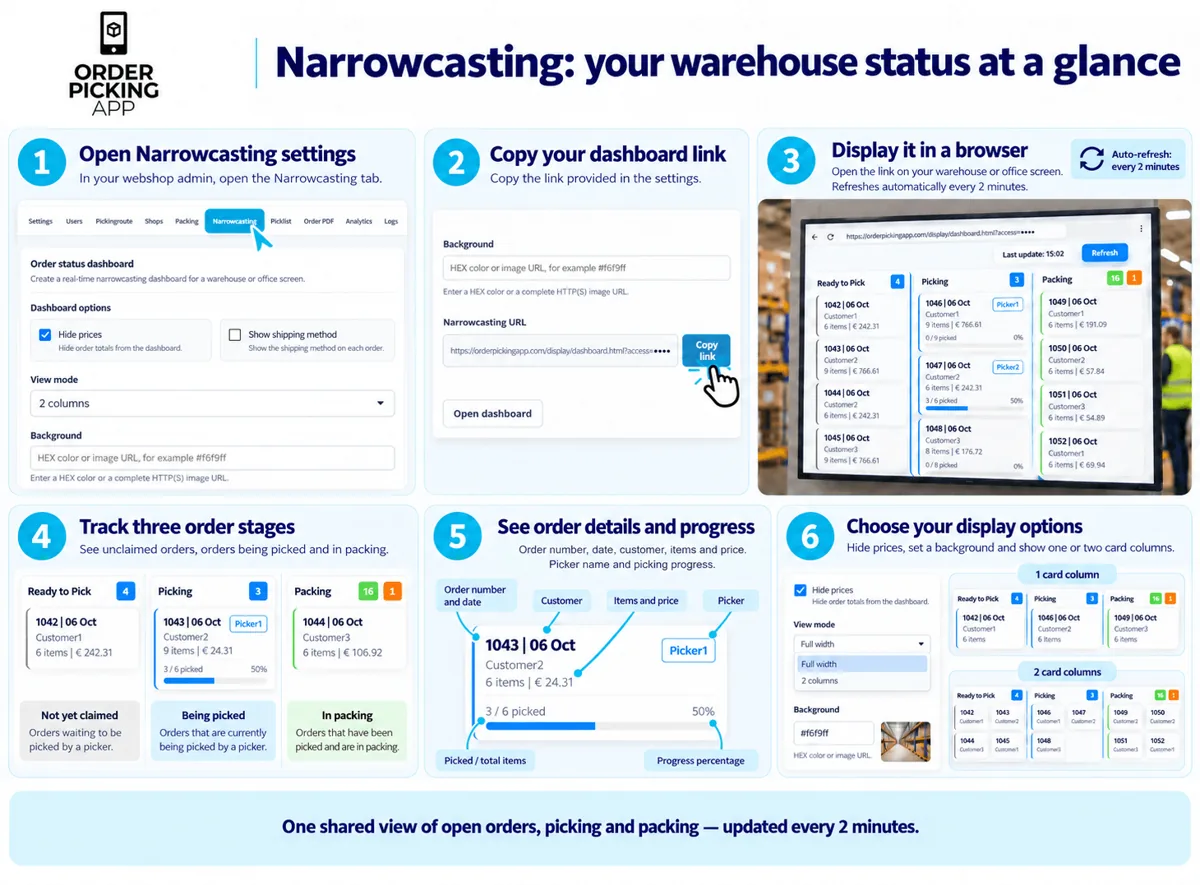 Narrowcasting
Show open orders, picking and packing on a large screen. The dashboard refreshes every two minutes, so the whole team sees the status.
Read the guide
Narrowcasting
Show open orders, picking and packing on a large screen. The dashboard refreshes every two minutes, so the whole team sees the status.
Read the guide
-
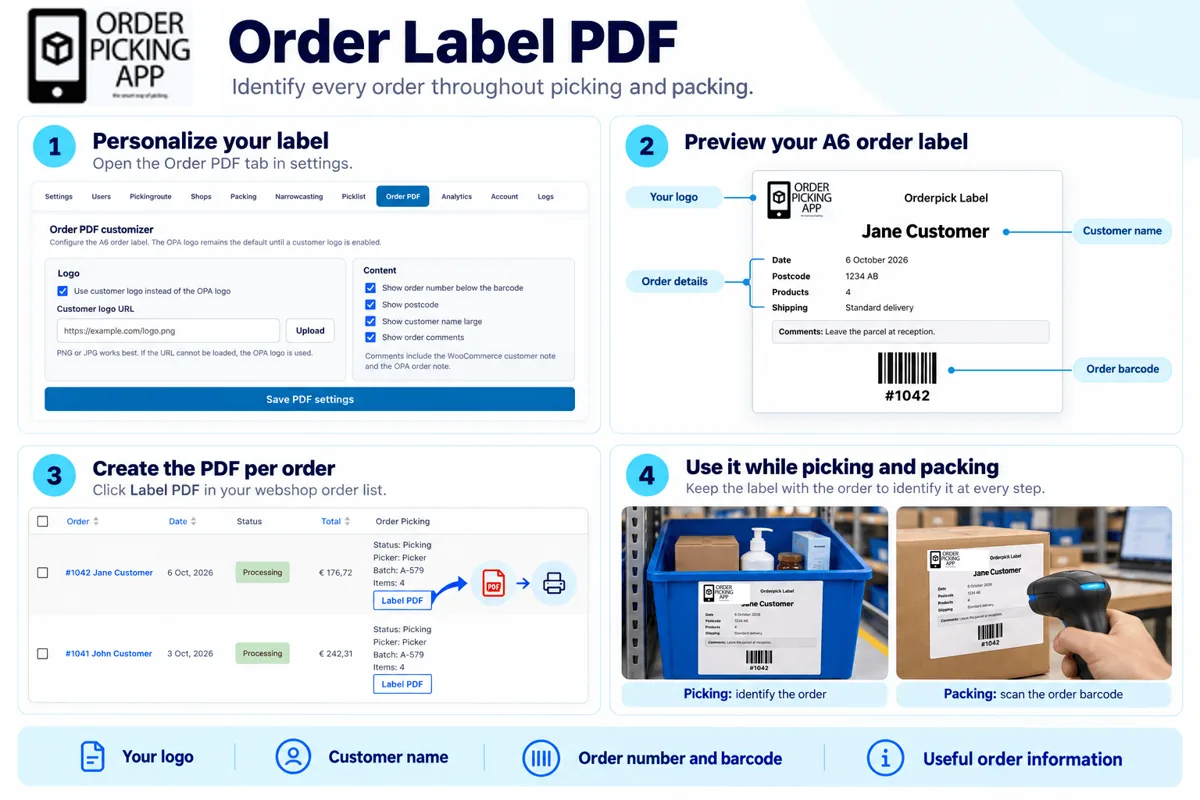 Order label PDF
Create a PDF label per order with your logo, the customer name, an order barcode and order details, to identify orders while picking and packing.
Read the guide
Order label PDF
Create a PDF label per order with your logo, the customer name, an order barcode and order details, to identify orders while picking and packing.
Read the guide
No guides match your search. Ask our support team.
Prefer to watch?
Short tutorial videos, all under two minutes.
-
1:38
Single order picking
One order at a time: choose a picker, scan, count and pack.
-
1:47
Batch from your oldest orders
The app fills a batch with 2 to 20 of your oldest open orders.
-
1:52
Batch picking with order labels
Print a label per order, put it in a bin and scan to add the order.
-
1:28
Picking route with locations
Create your stock locations and assign them to products in bulk.
-
1:29
Desktop packing
Find an order at your packing station, check the items and complete it.
-
1:44
Stock counts (add-on)
Scan your shelves and see straight away where stock differs.
-
1:36
Sell at the counter (POS add-on)
Create a sales user, select a customer and build orders by scanning products.
-
1:11
How Order Picking App works for horticulture
From order to greenhouse: pick with a fixed route, a photo and a check for every plant.
Questions about setting up
Can’t find what you need in the guides? We’re happy to help.
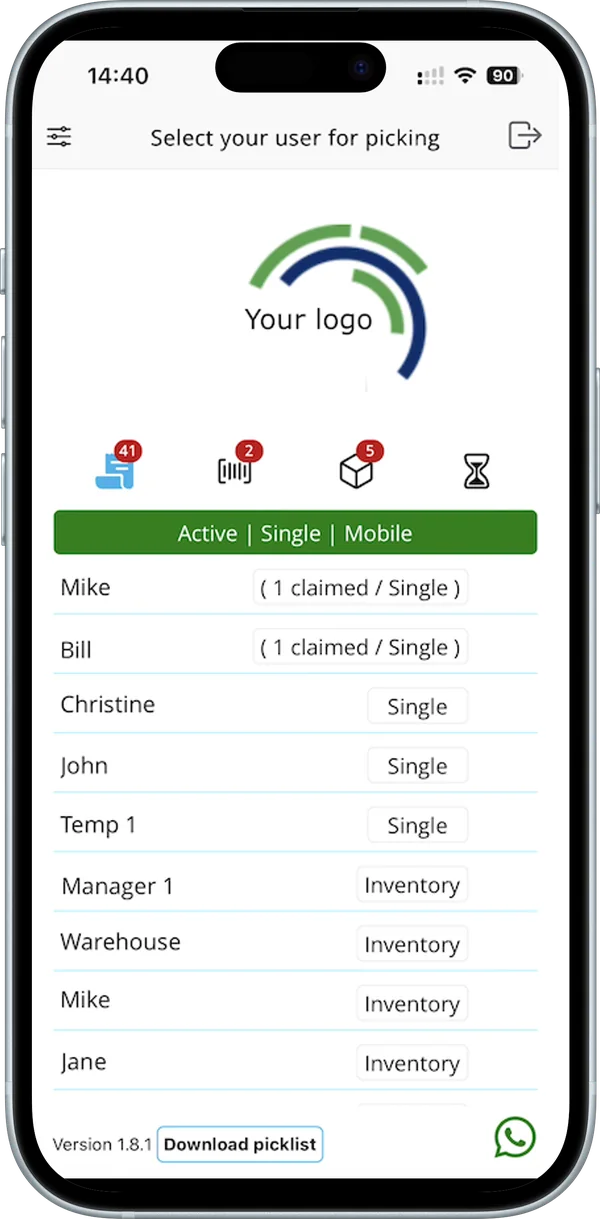
Where do I start?
Connect your platform, then follow “All settings, step by step”. After that, start with single order picking and move to batch picking when your team is ready.
Read the settings guideDo the guides apply to my platform?
Most guides work for every platform. Picking Route is for WooCommerce; some settings and order labels differ for WooCommerce and Shopify. Each guide says which platforms it covers.
Single or batch picking: which should I use?
Start with single order picking: one order at a time. Batch picking puts 2 to 20 orders in one round, each in its own bin, and saves walking when you have many orders.
Compare the four batch flowsHow do I connect my webshop?
Each platform has its own page with the connection steps, what the app needs and what it costs.
See all integrationsReady to try it in your own warehouse?
Start your free trial and follow the guides as you go.