
Order Label PDF
Keep every order easy to identify
Create a PDF label for each order with Orderpicking App. Add your own logo, the customer’s name, an order barcode and useful order information to help your team identify orders throughout picking and packing.
Keep the printed label with the order’s bin or products, so its details stay close at hand as it moves through your warehouse.
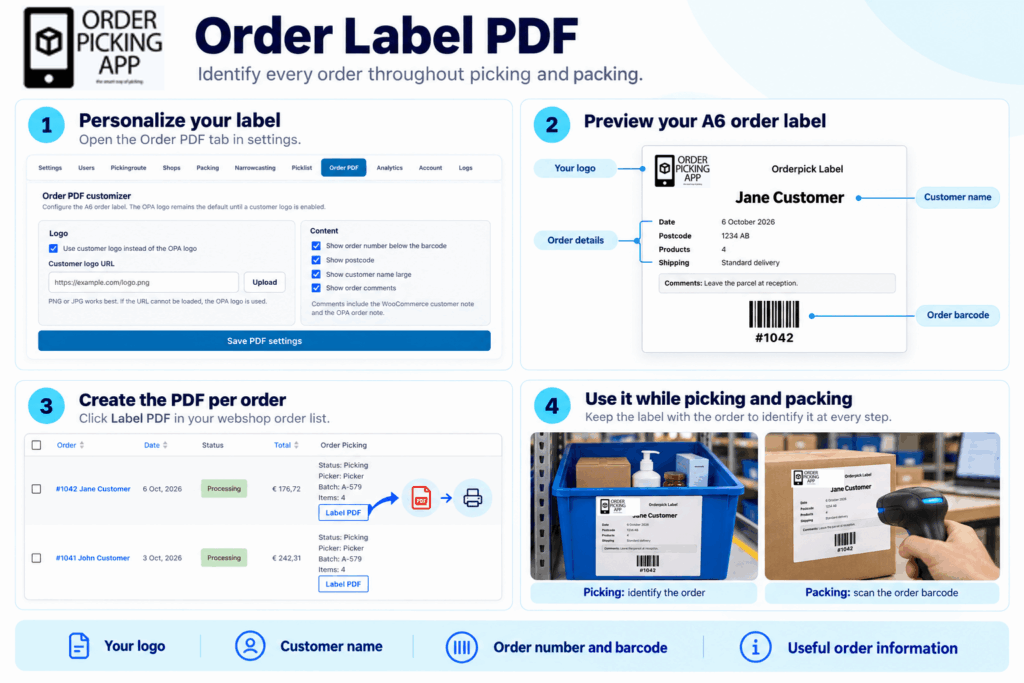
Personalize your order labels
Open the Order PDF tab in your settings to configure the A6 order label. Enable Use customer logo instead of the OPA logo, then upload your logo or enter its image URL. The Orderpicking App logo is used by default until you enable your own logo.
Choose how much information to display:
- Show the order number below the barcode.
- Include the customer’s postcode.
- Display the customer’s name in a larger size.
- Include order comments.
Order comments can include both the WooCommerce customer note and the Orderpicking App order note. The live preview shows how your label will look before you click Save PDF settings.
Useful order details in one place
Each label brings together the information your team needs to recognize an order, including the customer’s name, order barcode, order date, product count and shipping method.
A prominent customer name makes the order easy to recognize at a glance. The barcode provides a quick way to identify the order when using order scanning during picking or packing.
Create a PDF for each order
In your webshop’s order list, find the Label PDF button in the Order Picking column. Click it to generate the PDF for that order, then print the label and place it with the order.
Your saved label settings give your team a consistent layout across orders.
From the picking bin to the packing station
During picking, keep the label on or with the order’s bin to show which order the products belong to. This is especially useful when several orders are being handled at the same time.
At the packing station, use the customer name, order number or barcode to identify the order before checking and packing its products. Any included order comments remain visible for the team handling the package.
Give every order a clear identity. Configure your Order Label PDF in the Order PDF settings tab.