
Single Order Picking: pick and pack one order at a time
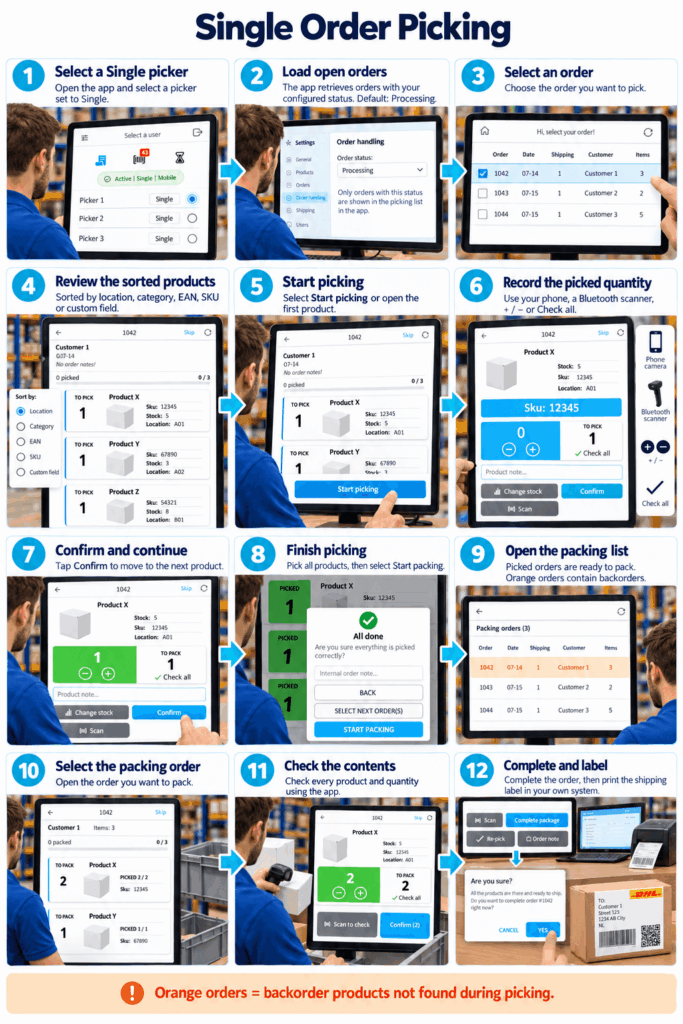
Single Order Picking guides your team through one customer order at a time. Select an order, collect its products, confirm the quantities and move it to packing. The packer then checks the contents using the app before completing the order.
Open your picking orders
Log in to Orderpicking App and select a picker configured as Single.
The app retrieves open orders with the order status selected in your webshop settings. The default status is Processing.
Select the order you want to pick to open its product list.
Follow your preferred product order
Products are arranged according to your configured sorting method: location, category, EAN, SKU or a custom field.
This helps your picker work through the order in a sequence that suits your warehouse.
Select Start picking or open the first product directly.
Collect and confirm each product
The product screen shows the item and the quantity to pick. Record the collected quantity using:
- Your phone’s camera to scan the product barcode.
- A Bluetooth barcode scanner.
- The + and − controls.
- Check all to confirm the full required quantity.
Select Confirm to move to the next product. Repeat until you have worked through the order.
Move the order to packing
Once picking is finished, select Start packing in the All done window.
The app opens the packing list, which contains orders that have been picked and are ready for packing.
Orange orders contain backorder products that could not be found during picking. These orders need attention when checking their contents.
Check the contents using the app
The packer selects an order from the packing list and checks the collected products against the order in the app.
Open each product to verify its quantity. Use Scan to check or the available quantity controls, then confirm the checked items as you pack them.
This gives the packer a clear view of what belongs in the package and what has been checked.
Complete the order and create the shipping label
When all products have been checked and packed, select Complete package and confirm that you want to complete the order.
Then create and print the shipping label in your own shipping system.
A clear process from picking to packing
Single Order Picking keeps your team focused on one order, with product details, quantity confirmation and packing checks available in the same app. It provides a consistent process from selecting an open order to preparing the package for shipment.