Desktop Packing
Check and pack orders from your PC
Turn your warehouse PC into a packing station with Orderpicking App. Desktop Packing gives your team a browser workspace to check products, track packing progress and complete packages alongside packing on a phone or iPad.
Set up your packing station
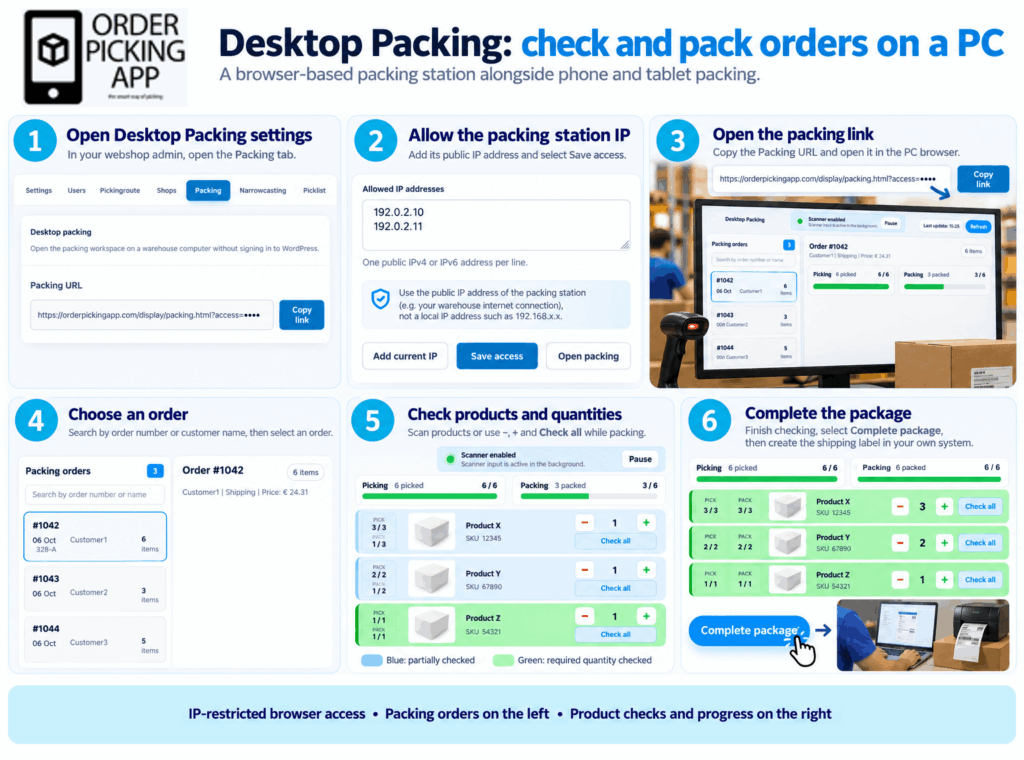
Open the Packing tab in your Orderpicking App settings. Add the public IP address of the internet connection used by your packing station, then click Save access.
Copy the Packing URL and open it in the PC’s browser. The workspace checks whether the connection’s public IP address is allowed before displaying your packing orders. Your packer can use this workspace without signing in to WordPress.
You can enter multiple allowed public IPv4 or IPv6 addresses, one per line, or use Add current IP to add the address of your current connection.
Find the order you want to pack
The left side of the workspace lists the orders waiting to be packed. Each order card shows the order number, order date, customer name, batch reference and item count.
Search by order number or customer name, then select an order to open its products on the right. The order header shows the customer, shipping information, order value and total number of items.
Check every product and quantity
Each product row displays its image, title and SKU, together with the quantities picked and packed. Separate progress bars show how much of the order has been picked and how much has been checked during packing.
Use a barcode scanner to check products as you place them in the package. The Scanner enabled indicator shows when scanner input is active in the background. You can pause scanning whenever needed.
You can also adjust the checked quantity with the + and − buttons, or use Check all to confirm the full required quantity for a product.
Blue product rows indicate a partially checked quantity. Green rows indicate that the required quantity has been checked.
Complete the package
Once you have checked all products and quantities, click Complete package to finish packing the order. Create and print the shipping label in your own shipping system, then prepare the package for dispatch.
A clear workspace for your packing team
Desktop Packing brings the order queue, product details and packing progress together on one screen. It is ideal for a fixed packing station where your team works with a PC, barcode scanner and shipping printer.