
BigCommerce connection
The Smart way of Orderpicking
Pick and pack with less mistakes and efficient routes.
Order picking for BigCommerce
Easily connect your BigCommerce webshop using simple steps, you don’t need any heavy technical knowledge for this. After linking your account bij the API Key, Orderpicking will automatically import all orders and product data, including photo and stock.
Process orders for BigCommerce
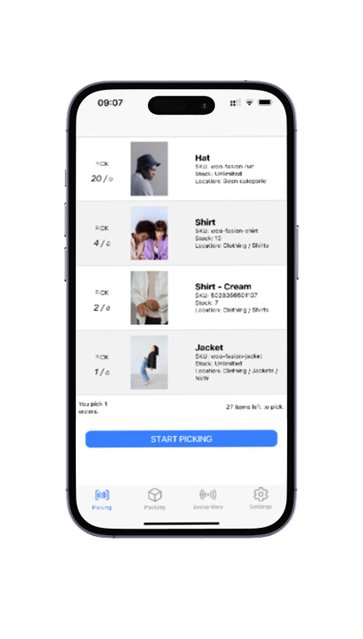
Process your BigCommerce orders easily with the Order Picking App app. Easily collect the products through stock locations, check the products using a barcode scanner (not required) and then complete the order immediately.
All orders and associated history can always be found in the clear order overview. This way, customer service can easily see the status of an order and/or make adjustments.

FAQ BigCommerce Orderpicking App
The Orderpicking App requires at least Android version 15 (Android 5.0 Lollipop) or higher.
This is not our own decision, but a requirement set by the Google Play Store. Google does not allow new apps or updates to be published for Android versions lower than 15. As a result, we are unable to make the app available for older devices.
We would love to support older versions, but publishing through the Play Store is technically not possible due to Google’s policies on security and compatibility.
Recommendation:
Please ensure your device runs Android 5.0 or newer. Most smartphones and tablets from the last few years already meet this requirement.
How to Set Up Batch Picking
1. Open App Settings Go to App Settings via My Account on orderpickingapp.com or in the WordPress plugin. Under the Picking Type setting, switch from Single Order Picking to Batch Picking. Save the settings and restart the app on your device.
2. Select a Picker and Orders In the app, select the picker who will be processing the orders. Optionally, enable the setting to manually choose which orders are included in the batch.
3. Start Picking
* If no orders have been claimed by the picker, the app will automatically load the oldest 5 open orders.
* Alternatively, you can select specific orders by scanning the order number or manually entering it.
You’ll now see the total number of orders in your batch. Tap Start Picking to begin the process.
Batch Picking
We’ll group orders into batches of 5 per picking run. Each bin on the cart should be labeled A, B, C, D, and E. When starting a picking run, you’ll receive a run number that applies to the entire cart (e.g. Run 31).
During picking, the first product may belong to multiple orders. In that case, the app will tell you which bin letter(s) to place the product in and how many units to pick for each.
Once all items have been picked, proceed to the packing screen. Here, you’ll see each order listed by its run number + bin letter (e.g. 31A, 31B, etc.). This allows you to match the picked items to the correct customer and prepare them for shipping.
Step 1 – Install the BigCommerce App
Log in to your BigCommerce store and navigate to the BigCommerce App Marketplace.
Search for Order Picking App and click Install.
After installation, open the app and choose to create a new account or log in to an existing Order Picking App account.
Step 2 – Create Your Order Picking App Account
You will be redirected to Orderpickingapp.com to complete your account setup.
Choose your preferred subscription plan to start your 30-day free trial. The trial period ends automatically and does not renew without your approval.
Fill in all required information, select BigCommerce as your platform, and create a password.
Once registration is complete, you will receive an email containing your account details. Keep this email in a safe place for future reference.
Step 3 – Connect BigCommerce
Return to your BigCommerce Admin Panel and open the Order Picking App.
Enter the API Key you received by email during registration.
Once the API key has been validated successfully, your BigCommerce store will be connected to Order Picking App and your orders will begin synchronizing automatically.
You can now configure your settings, upload your company logo, and customize the application according to your workflow.
If you have any questions, please contact us at support@orderpickingapp.com or via WhatsApp.
Step 4 – Install the Mobile App
Download the Order Picking App on your smartphone:
- Apple App Store (iPhone)
- Google Play Store (Android)
Search for Order Picking App and install the application.
Step 5 – Connect the Mobile App
Your webshop is now connected. The final step is linking the mobile app to your account.
In the BigCommerce Order Picking App dashboard, go to Settings and open your API Key (barcode + numbers).
Open the mobile app and tap Scan API Key. Your phone’s camera will open.
Scan the barcode and save the connection in the app.
Once the scan is completed successfully, the mobile app is connected to your account and you are ready to start picking orders.
o use the order picking app optimally with an external Bluetooth scanner and a keyboard, we recommend enabling the HiD Keyboard function on your scanner.
What does the HiD Keyboard function do?
This feature allows you to use both your keyboard and Bluetooth scanner simultaneously as input devices.
It’s ideal for situations where you need to alternate between entering data via the keyboard and scanning with the Bluetooth scanner.
What if my scanner doesn’t have a HiD Keyboard function?
If your scanner doesn’t support this function, you can only use one input device at a time.
This means you can either have the keyboard or the scanner active—but not both simultaneously.
Tip: Check your Bluetooth scanner’s manual to see how to enable the HiD Keyboard function.
It’s often easy to activate through a specific settings mode or by scanning a configuration code.
With the right settings, you can get the most out of your order picking app!
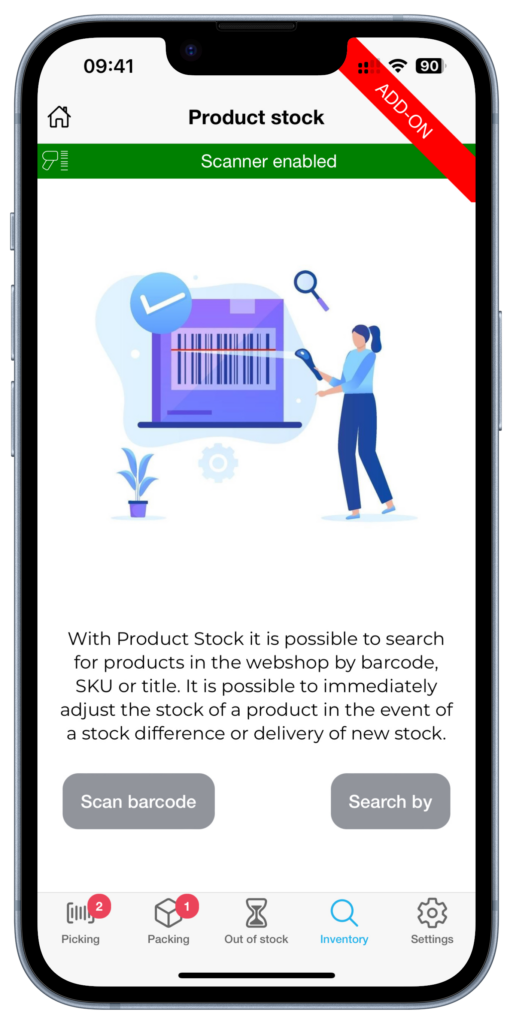
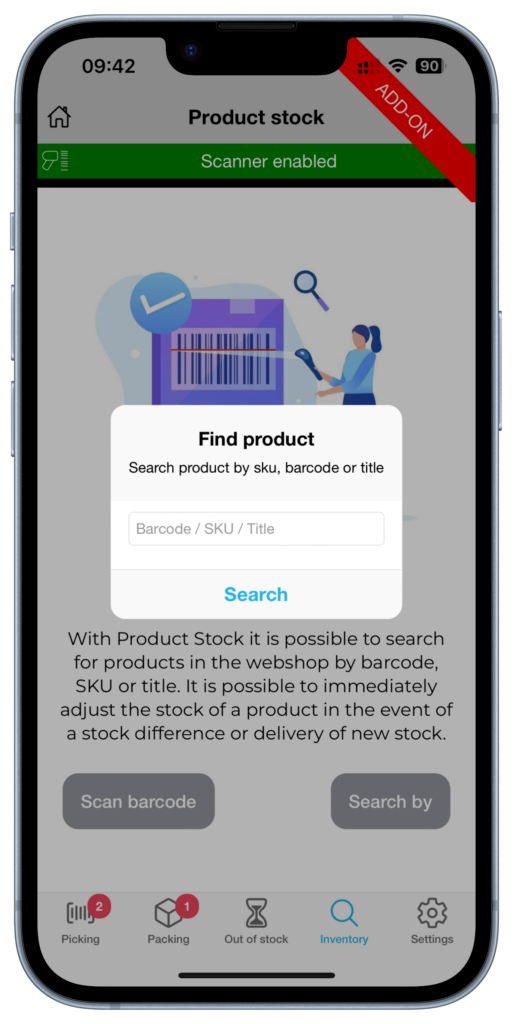
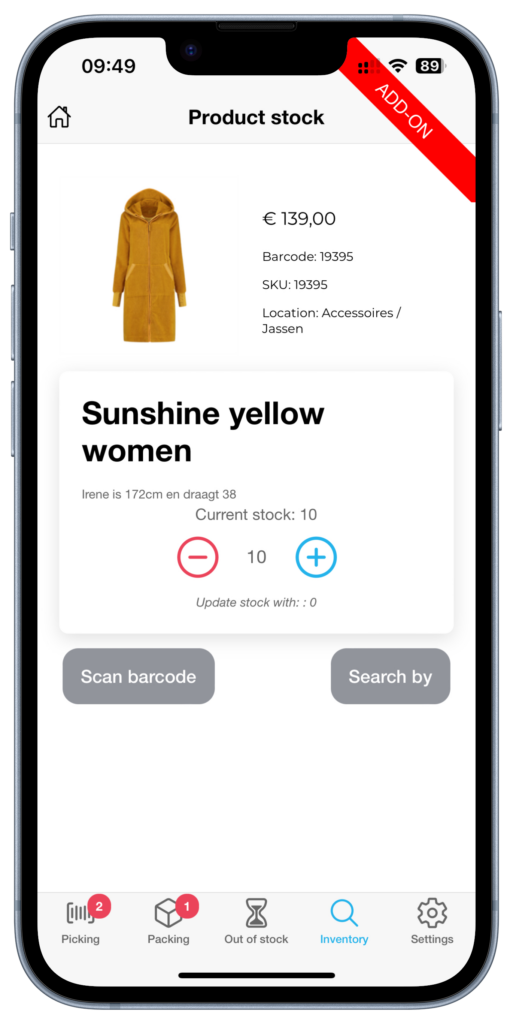
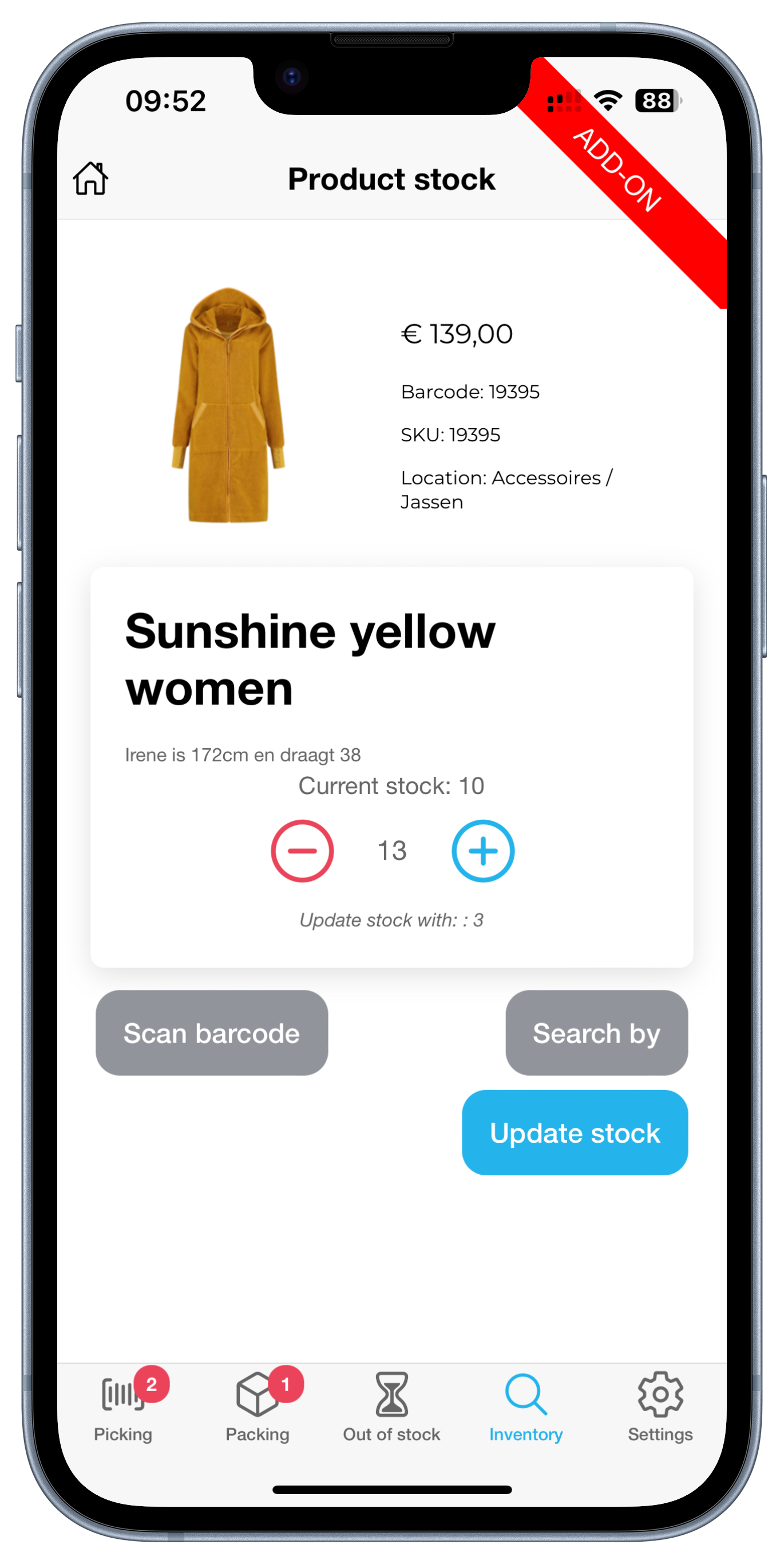
When you are order picking, you are already walking through the warehouse or the store. This is the perfect time to occasionally check the stock of a product. With the Inventory add-on we offer the option to scan the barcode or enter the sku/barcode (searching by product title is also possible for Woocommerce customers). We then retrieve the current stock of a product and this can be adjusted if necessary.
Inventory differences can be resolved during order picking. For example, consider products on a roll that are cut off during collection or to book new stock during a delivery.
Every shop has it’s own way of collecting orders. Some want to pick per order and others have multiple totes on a trolley. This is why we have the setting of the Order amount to pick at once.


When picking a single order you will start with the complete order list of open orders in the app. Here you can choose the order to pick.
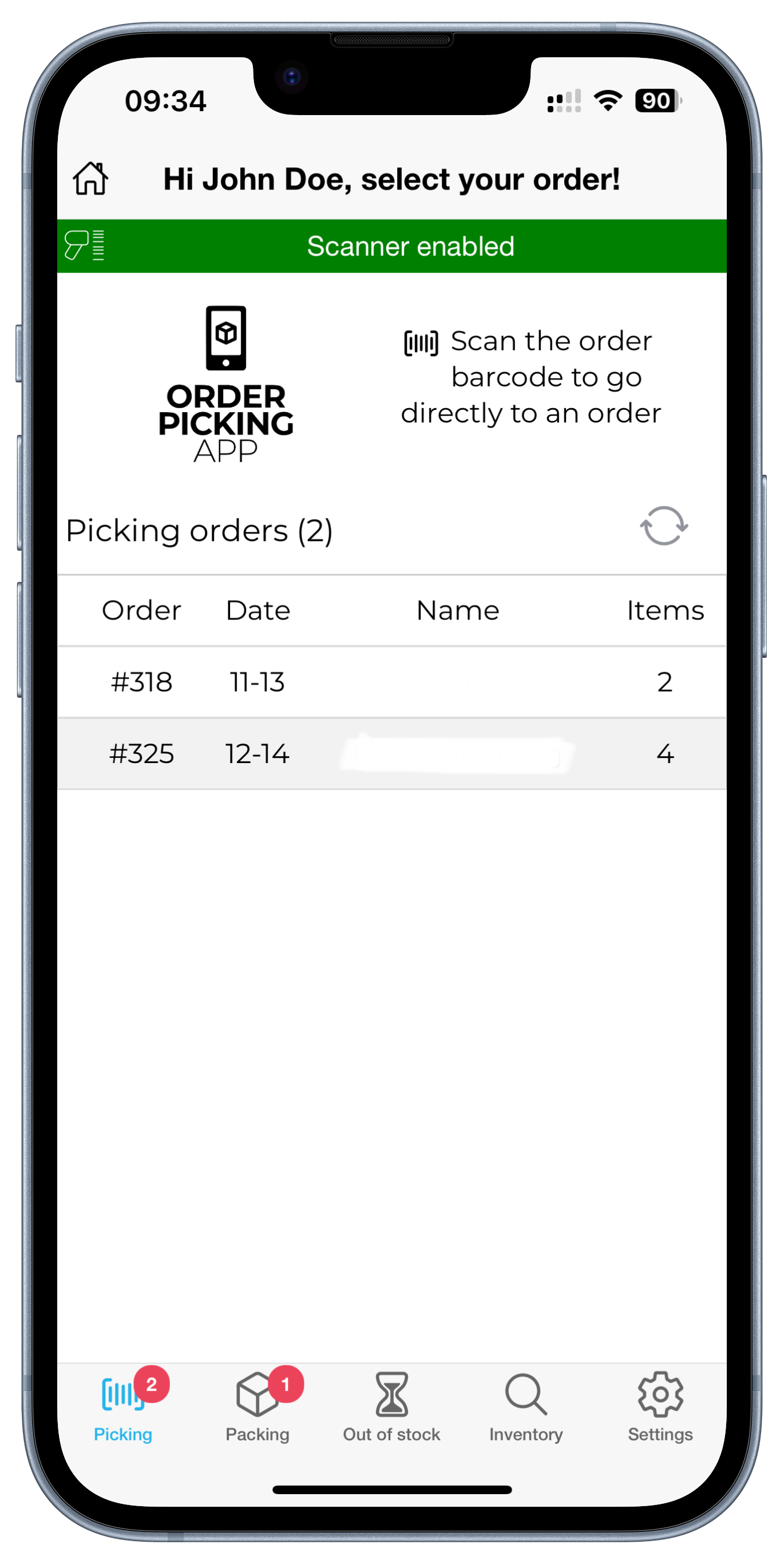
Single order picking
Batch picking
When selecting something other than single order we change the layout in the app a bit. If you have the option of 5 orders at once, we combine 5 orders in 1 picking-run. Each order will get a letter starting from A and a number (the batchnumber). These numbers will stick to the order true the whole process.
When batchpicking we will combine the orders so you will only stop at a product once (for multiple orders).
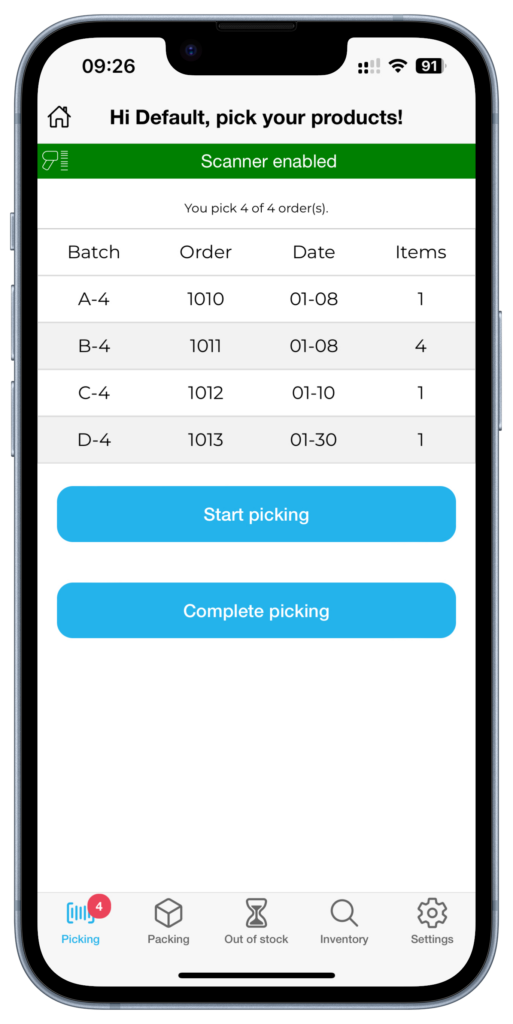
Batch picking orders
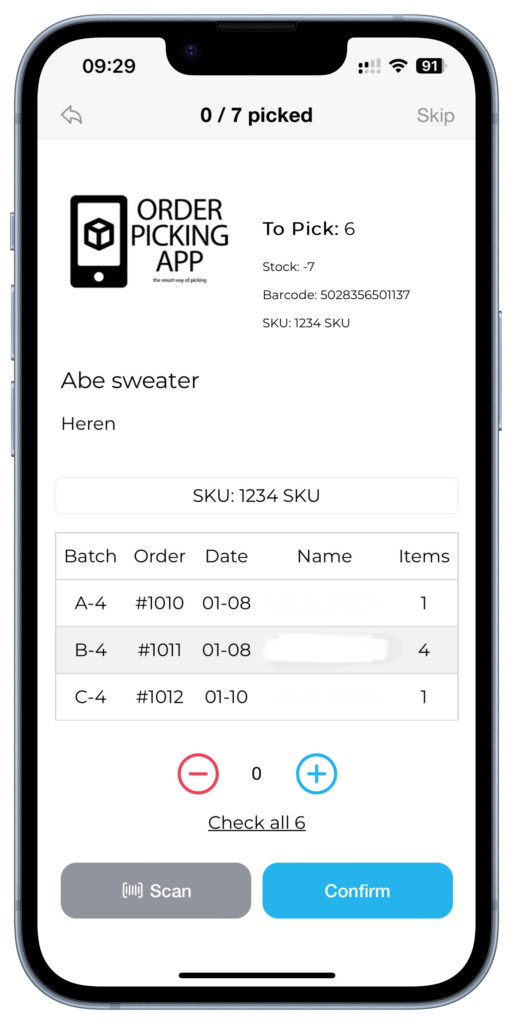
Batchpicking productscreen
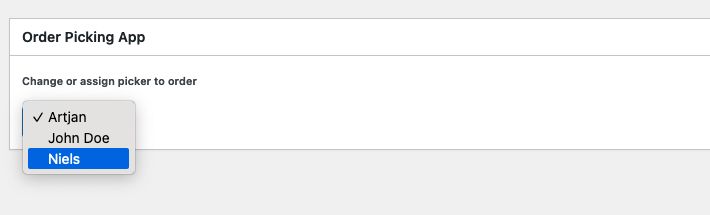
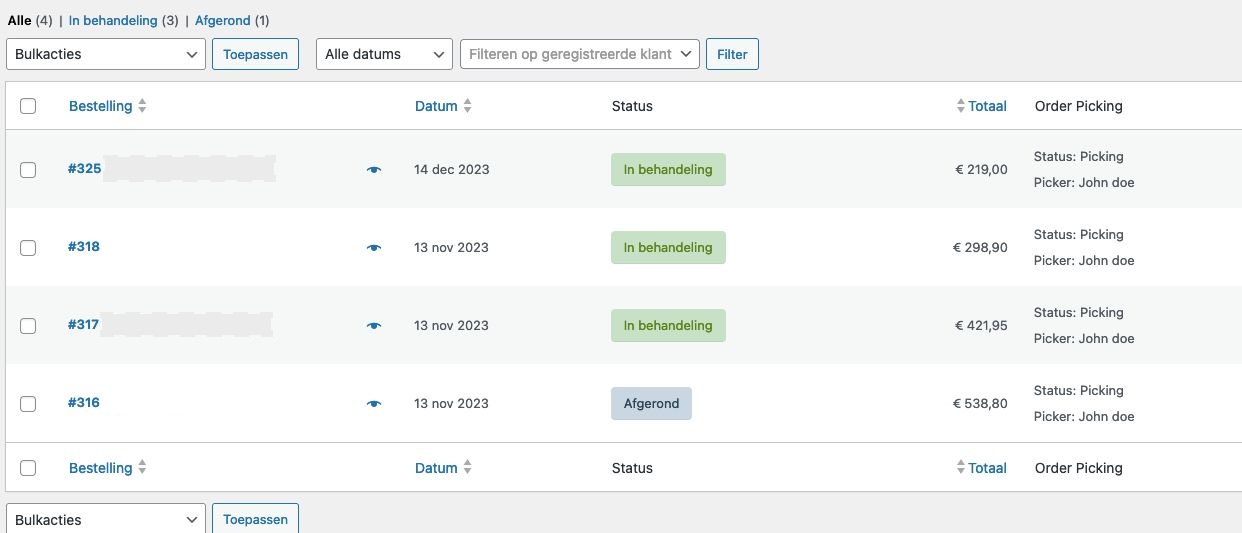
Yes you can, in Woocommerce. We build a column in the orderview of Woocommerce where you can see the picking status and assigned picker to a specific order. When opening an order, it is possible to pre-assign a picker.
Sure, no problem. We get that we have to proof our self :-). You can try the Orderpicking App 30 days. Do you like it and is it working for your company, GREAT, then you start paying a little fee. Not that much if you see the benefits it brings to the table!