
Finder: check products and update stock
Look up a product, check its details and adjust stock directly from the warehouse. Finder gives your team quick access to product information without leaving Orderpicking App.
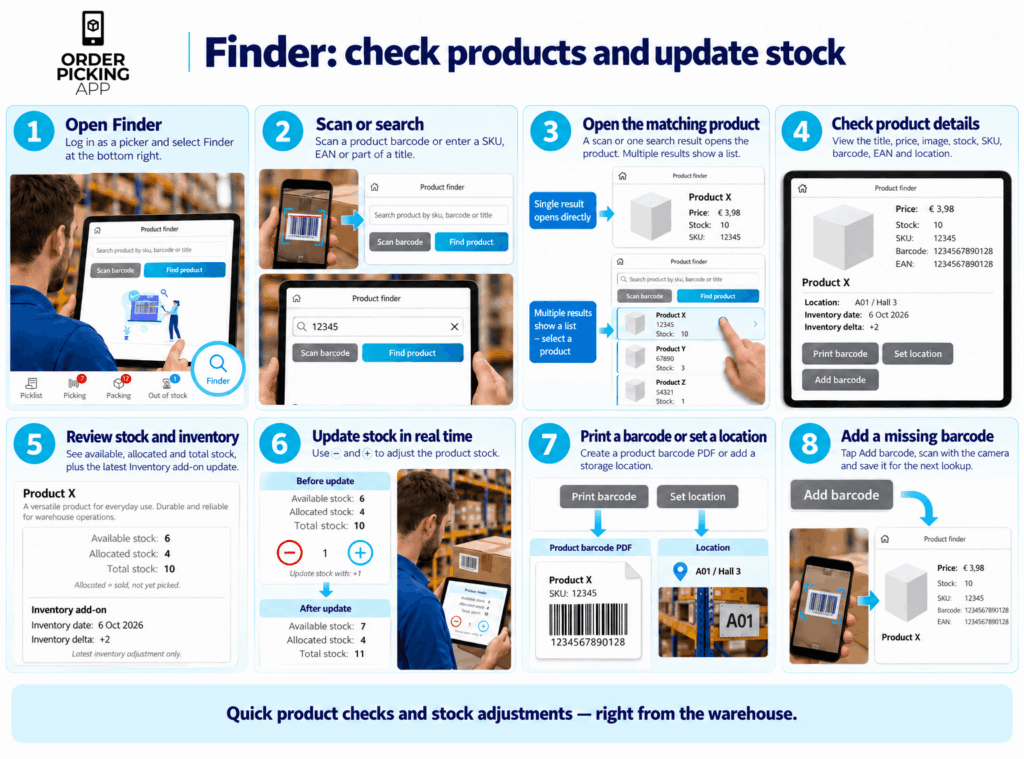
Log in as a picker and select Finder at the bottom right of the app.
Find products by scanning or searching
Scan a product barcode or enter a SKU, EAN or part of the product title.
Scanning opens the matching product directly. If your search returns one result, the app opens that product automatically. If several products match, you can select the right one from the results list.
View product details in one place
The product page shows the information you need to identify an item and check its stock:
- Product title and image.
- Price and stock quantity.
- SKU, barcode and EAN.
- Storage location.
If you use the Inventory add-on, Finder also displays the date and quantity change of the latest inventory adjustment.
Understand your available stock
Finder shows three stock figures:
- Available stock: the quantity available after reservations.
- Allocated stock: the quantity reserved for sales that have not yet been picked.
- Total stock: the available and allocated quantities combined.
For example, if a product has 10 units in total and 4 are allocated to orders awaiting picking, its available stock is 6.
Adjust stock in real time
Use the − and + controls on the product page to adjust the stock quantity.
This is useful when you discover a difference during a stock check or receive new stock. You can make the adjustment where you are working, with the product information in front of you.
Create a product barcode PDF
Select Print barcode to generate a PDF containing the product’s barcode. You can print it for use in your warehouse.